A lean learning platform, quick to ship and cheaper to run

A training provider has to build its courses, enrol the companies paying for them and report back to those companies on how their people are getting on. For ARC, whose members take their courses in ARC Campus, I designed the LMS so all of that happens without anyone at Xerxes Global stepping in: getting in, program health, launching a course, onboarding a customer and running the platform.

Team
Xerxes Global
Role
Lead Product Designer
Timeline
2026
Dashboard

Getting in

The LMS went live with ARC Campus in July 2026. A provider signs itself up or is invited by its team, names its organisation and lands on the first things to set up.
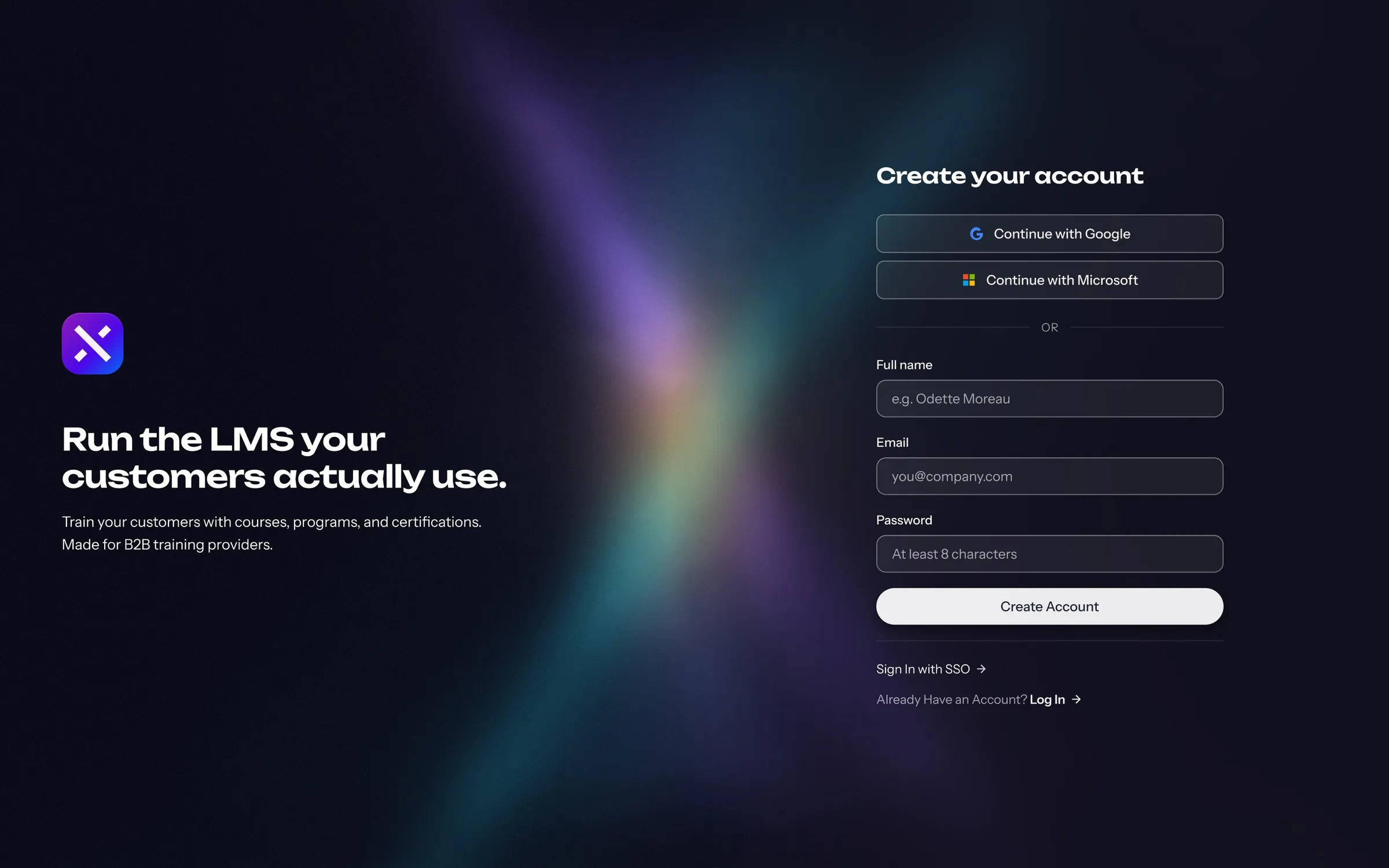
Signing up, then naming the organisation
  • The Create your account screen, Run the LMS your customers actually use, with Google and Microsoft sign-in, then full name, email and password

    Sign up

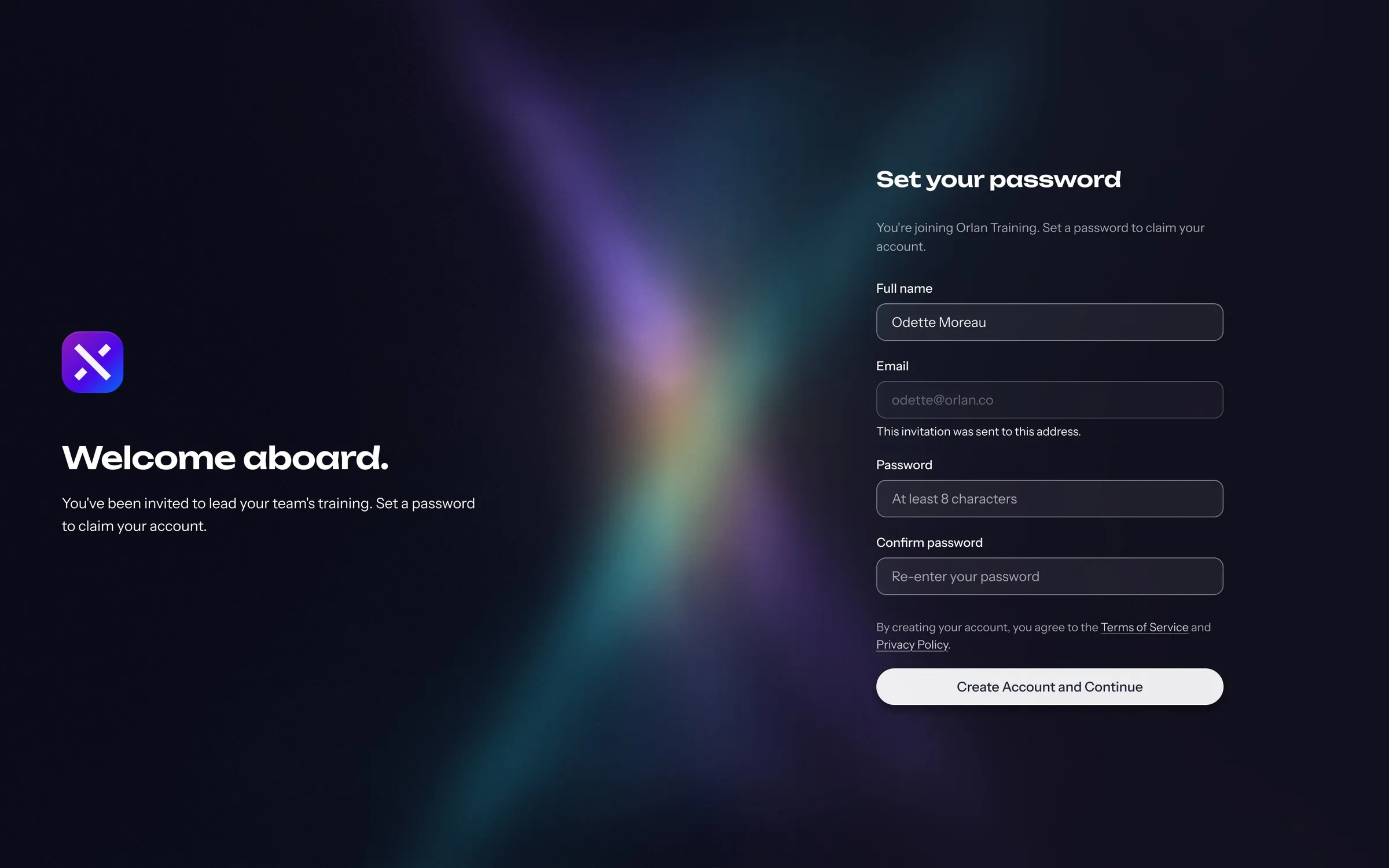
  • The Set your password screen for an invited team member, Welcome aboard, with the name and email already filled in

    Invited

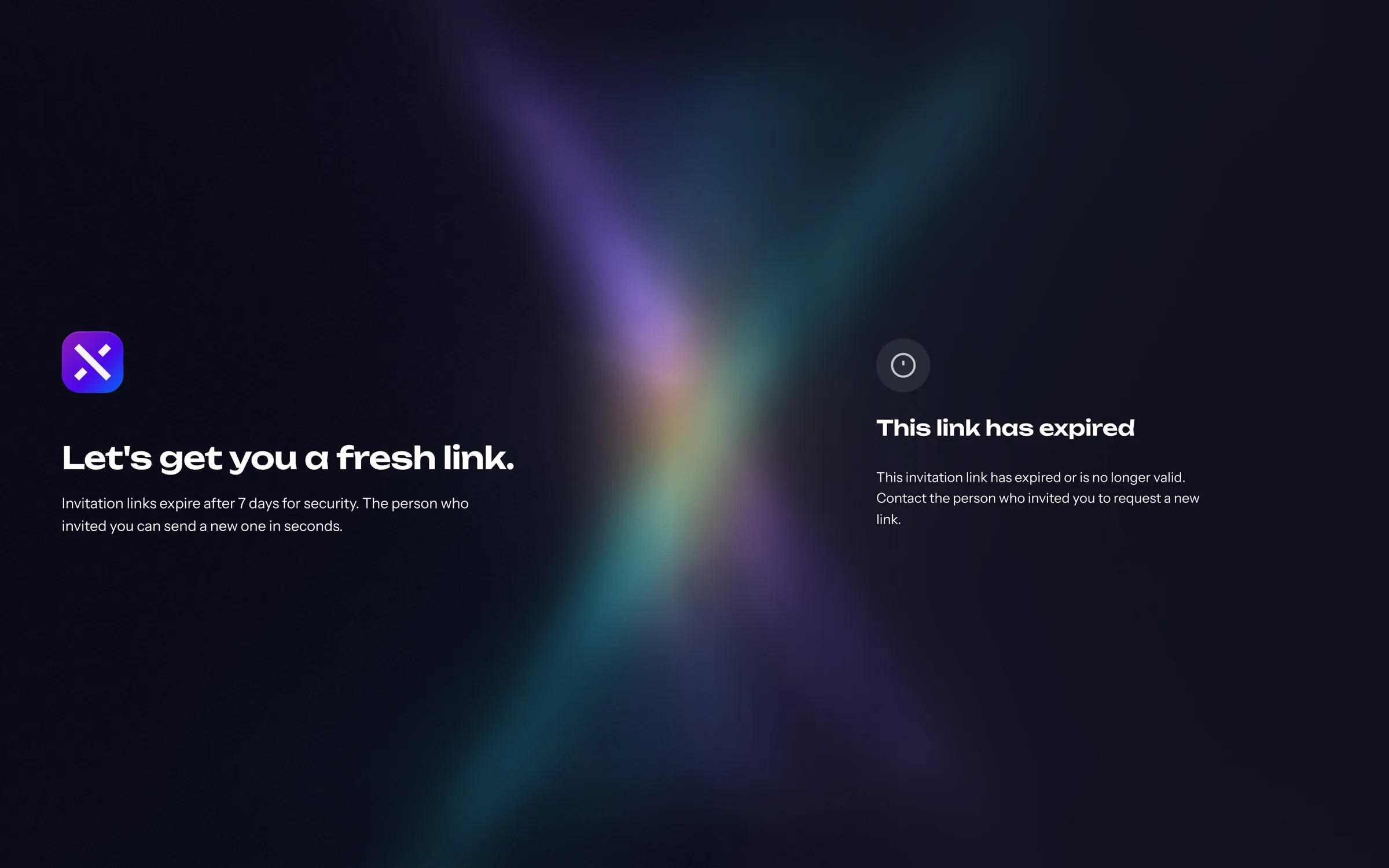
  • An expired invite screen, Let's get you a fresh link, explaining that invite links expire after seven days and who to ask for a new one

    Expired invite

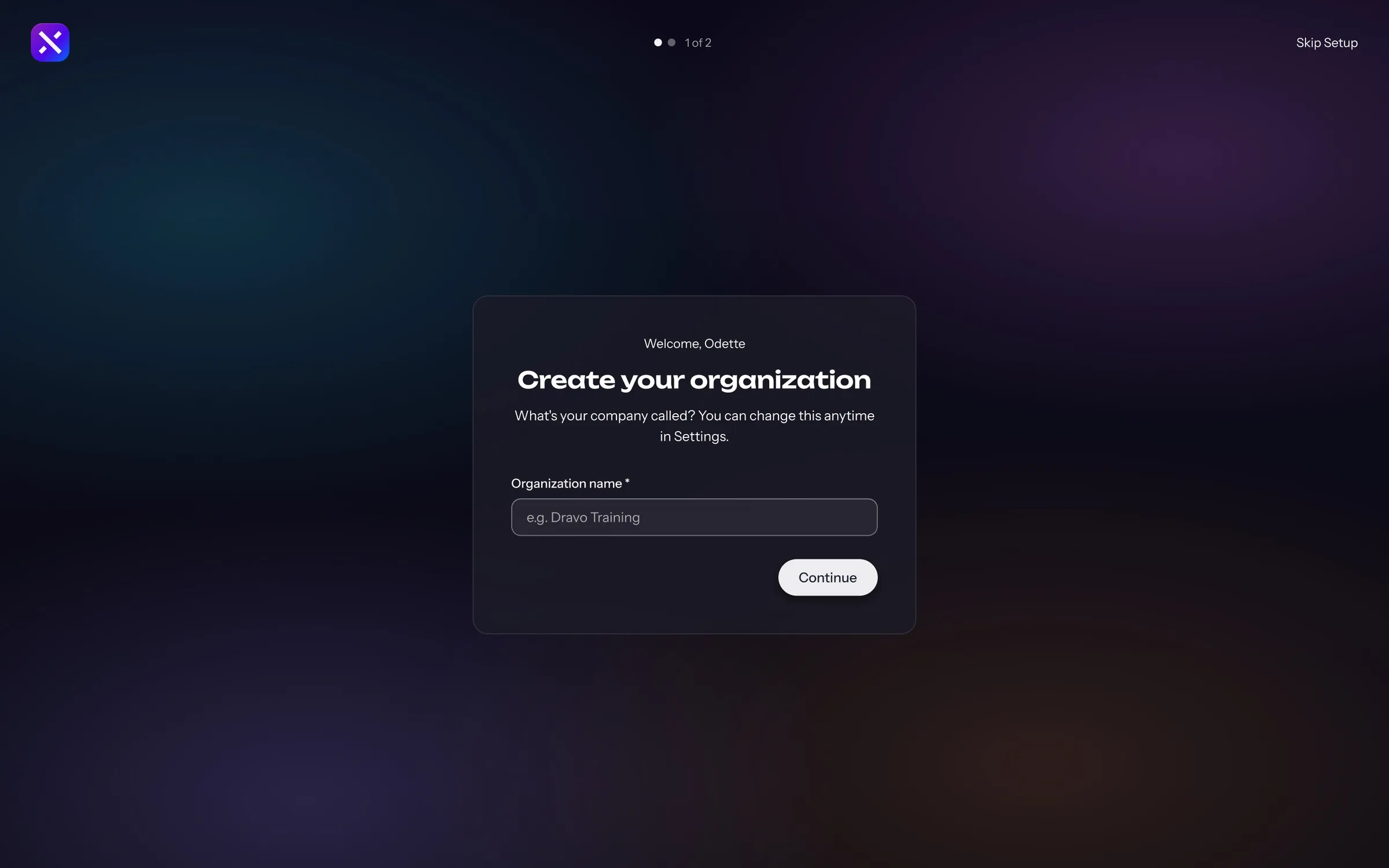
  • The first onboarding step, Create your organization, a single field for the organisation name over a dimmed workspace

    Create the organisation

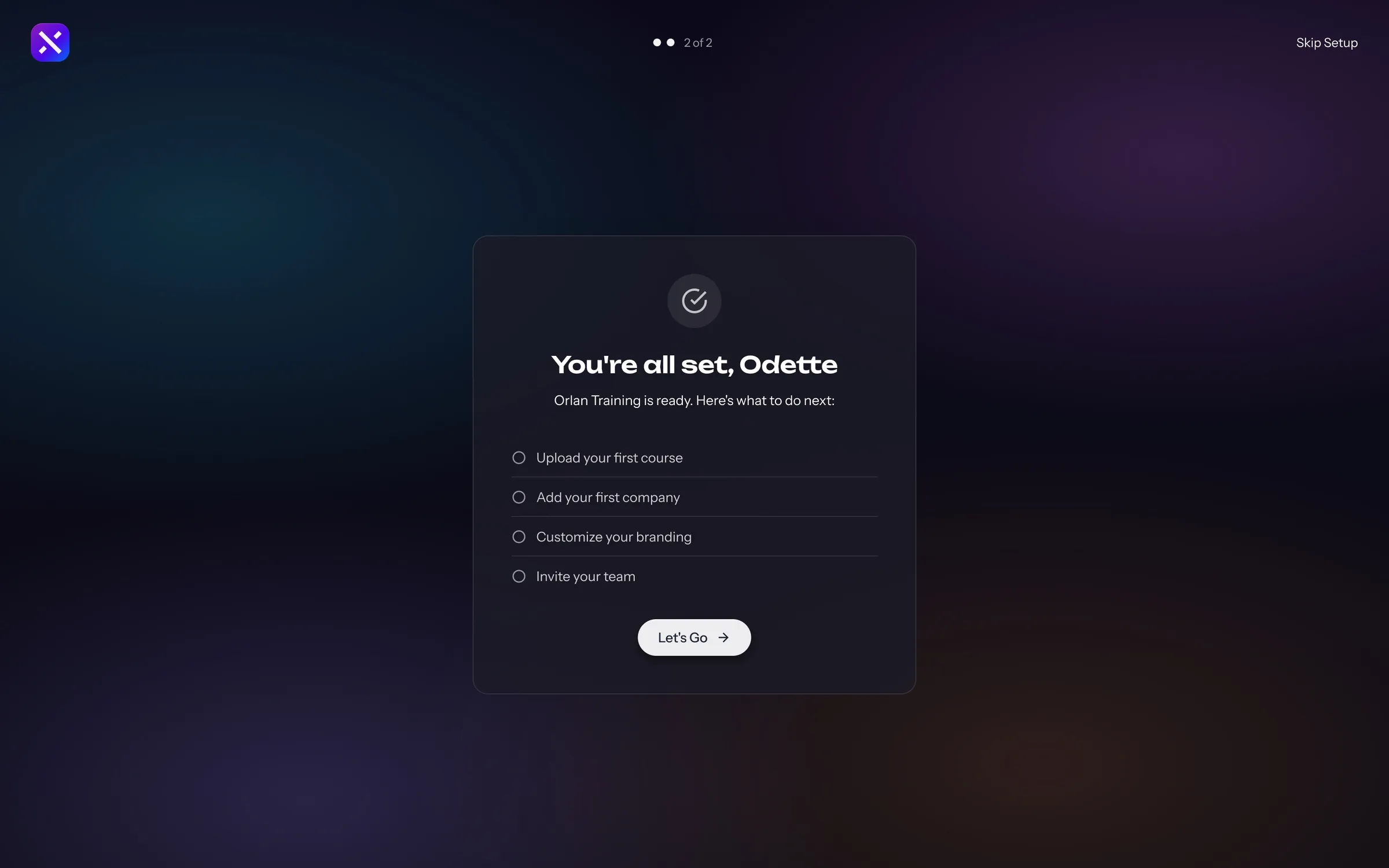
  • You're all set, Odette, with a short checklist: upload your first course, add your first company, customise your branding and invite your team

    All set

Program health

The dashboard shows a provider its learners, members and courses, and how far people are getting, each figure against the period before. From there it opens one program or course company by company, exports any table with the columns someone asked for and schedules a recurring report for a customer.
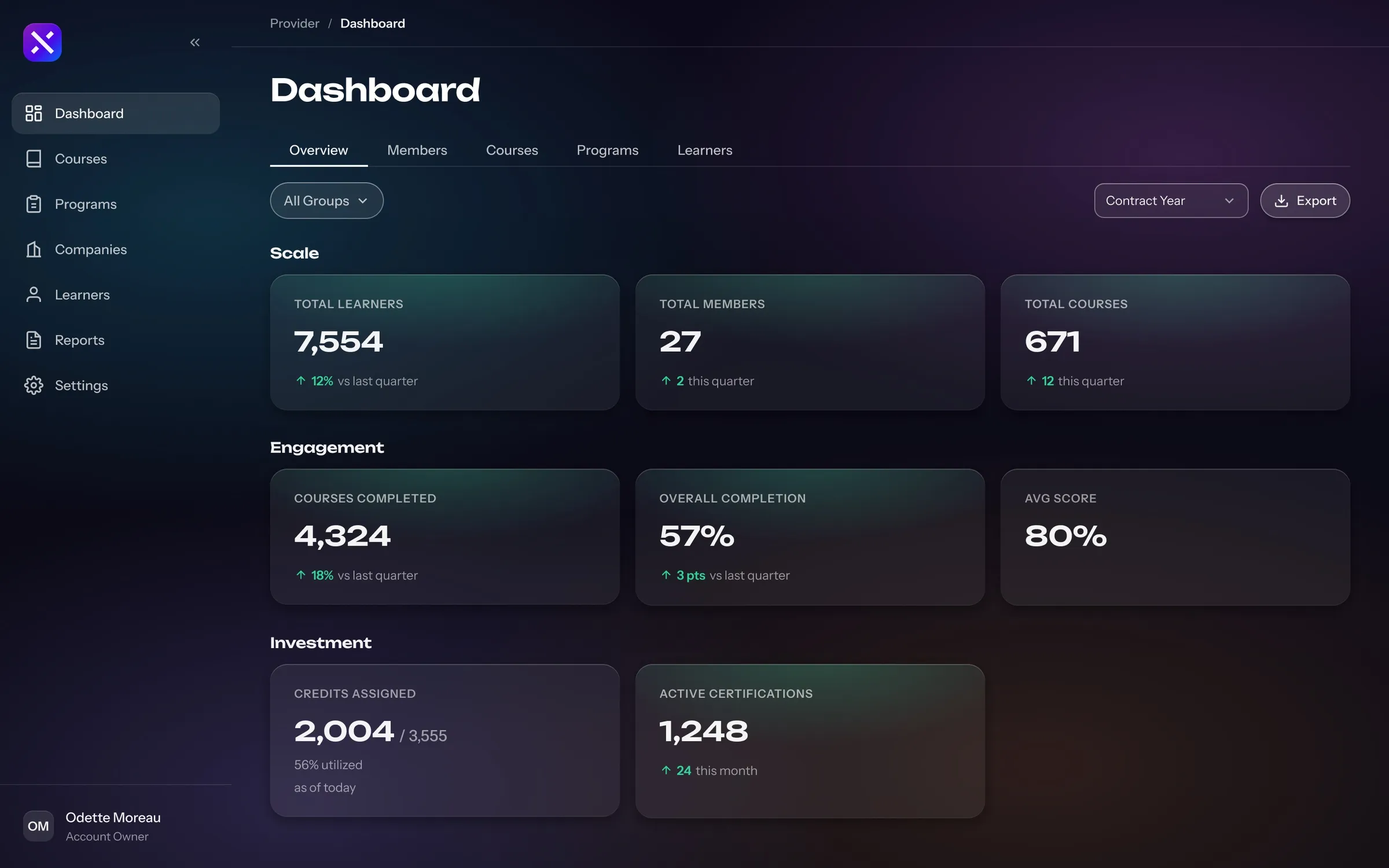
From the dashboard to a report scheduled for a customer
  • The provider dashboard with scale, engagement and investment rows: total learners, members and courses, courses completed, overall completion, average score, credits assigned and active certifications

    Dashboard

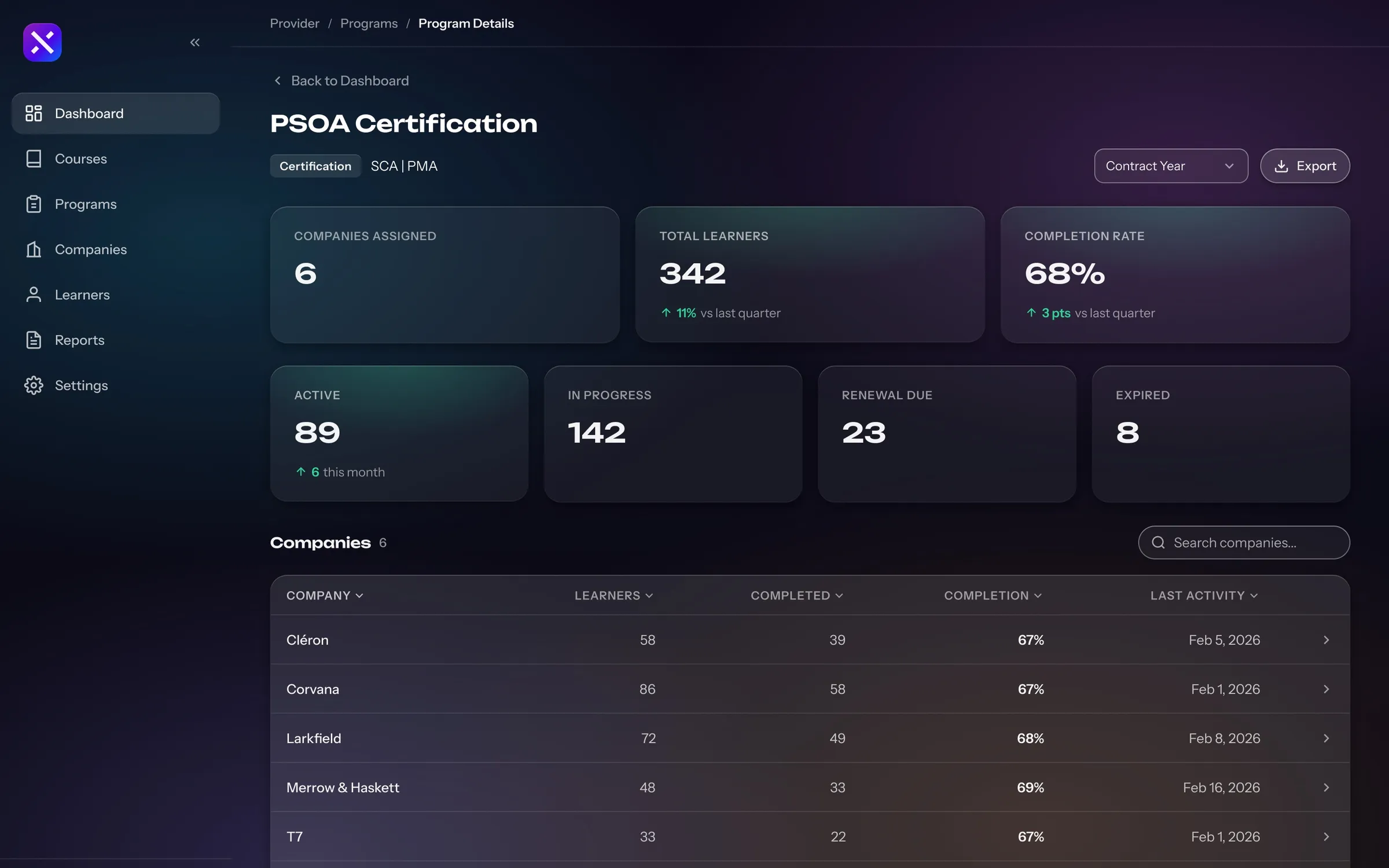
  • A certification program's details: companies assigned, completion rate, learners active, in progress, renewal due and expired, then a table of companies with their completion

    Program performance

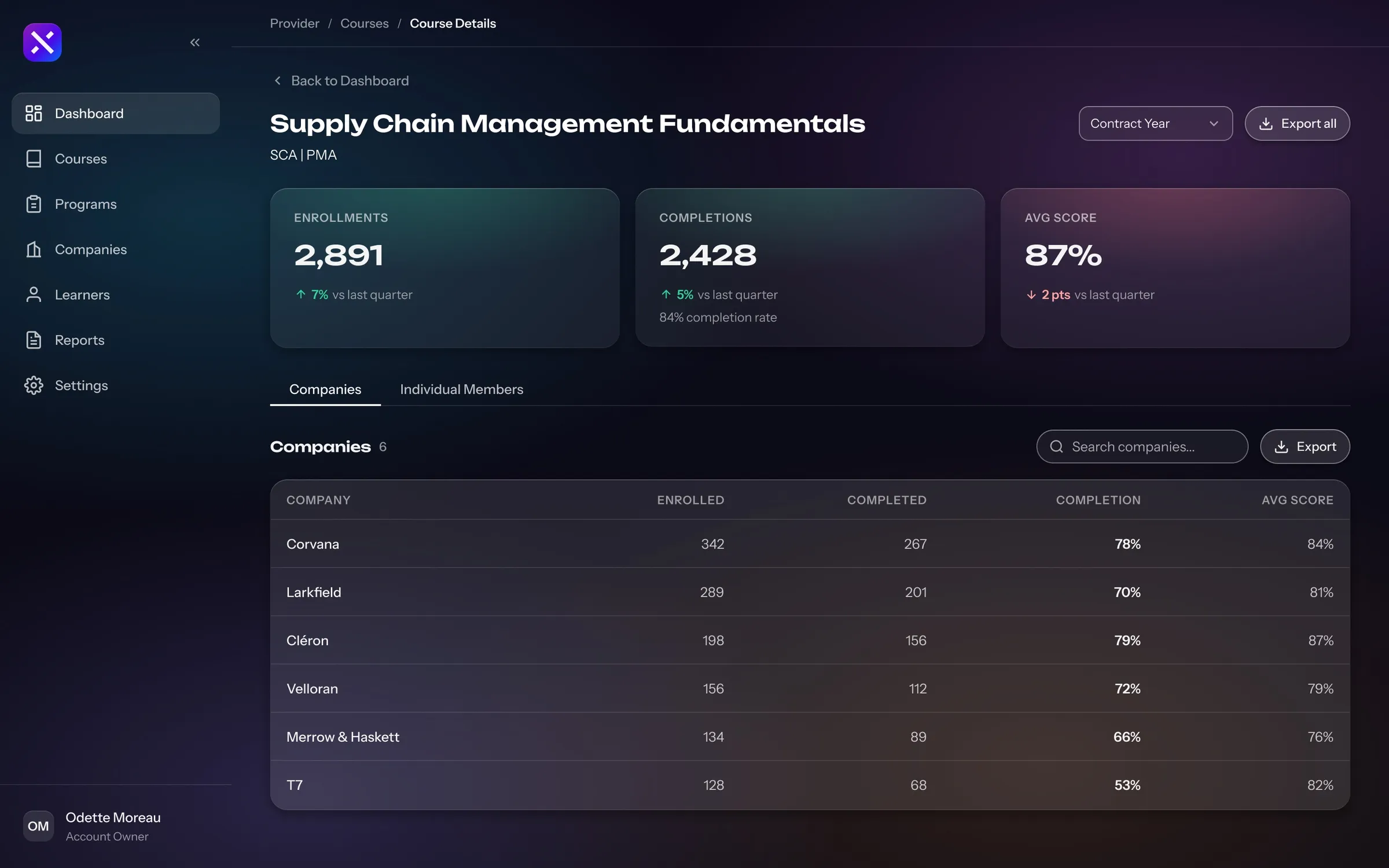
  • A course's performance with enrolments, completions and average score, and a Companies tab comparing each company's enrolled, completed, completion and score

    Course performance

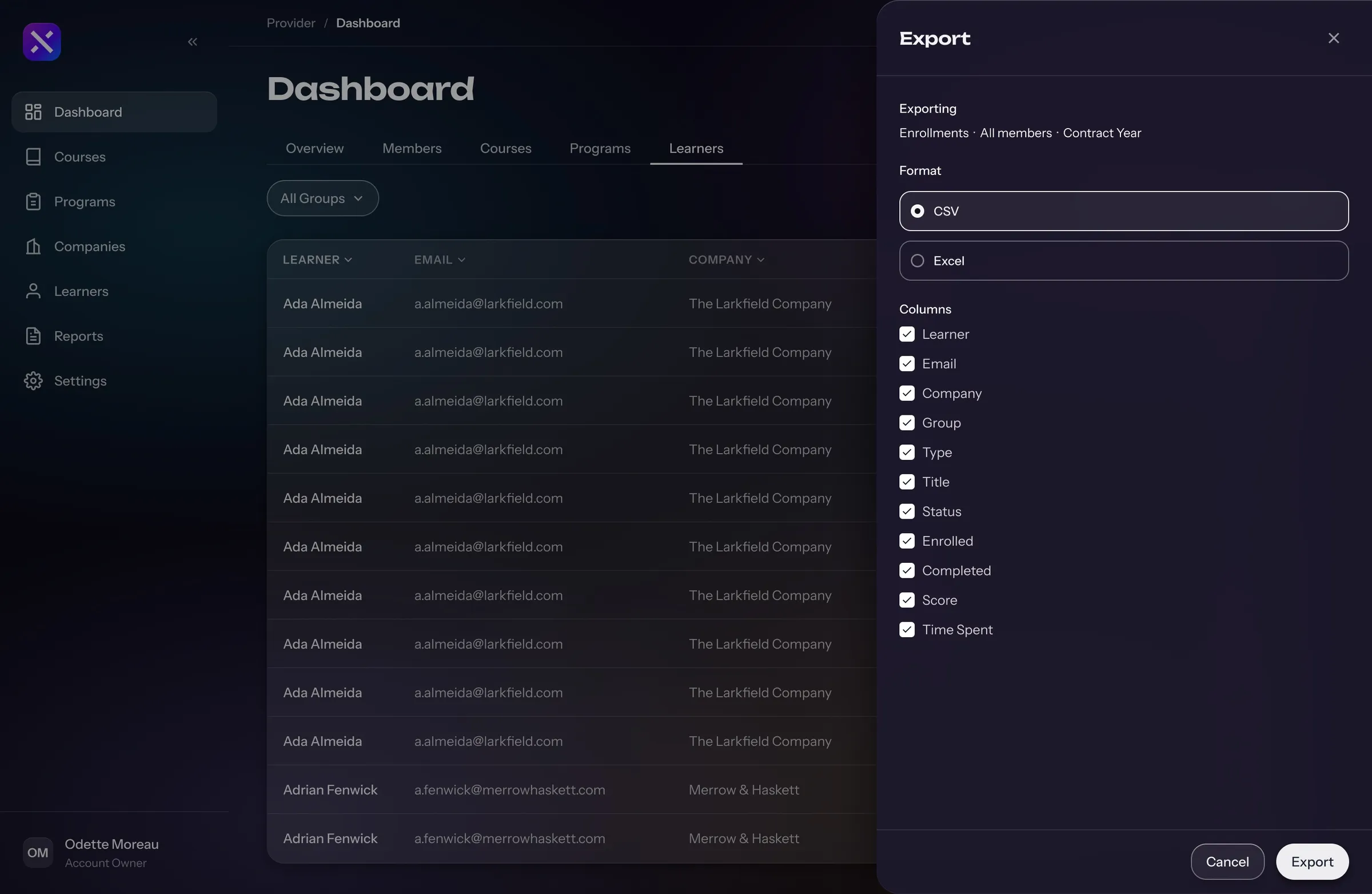
  • The learners table with an Export panel open, choosing CSV or Excel and ticking the columns to include

    Export

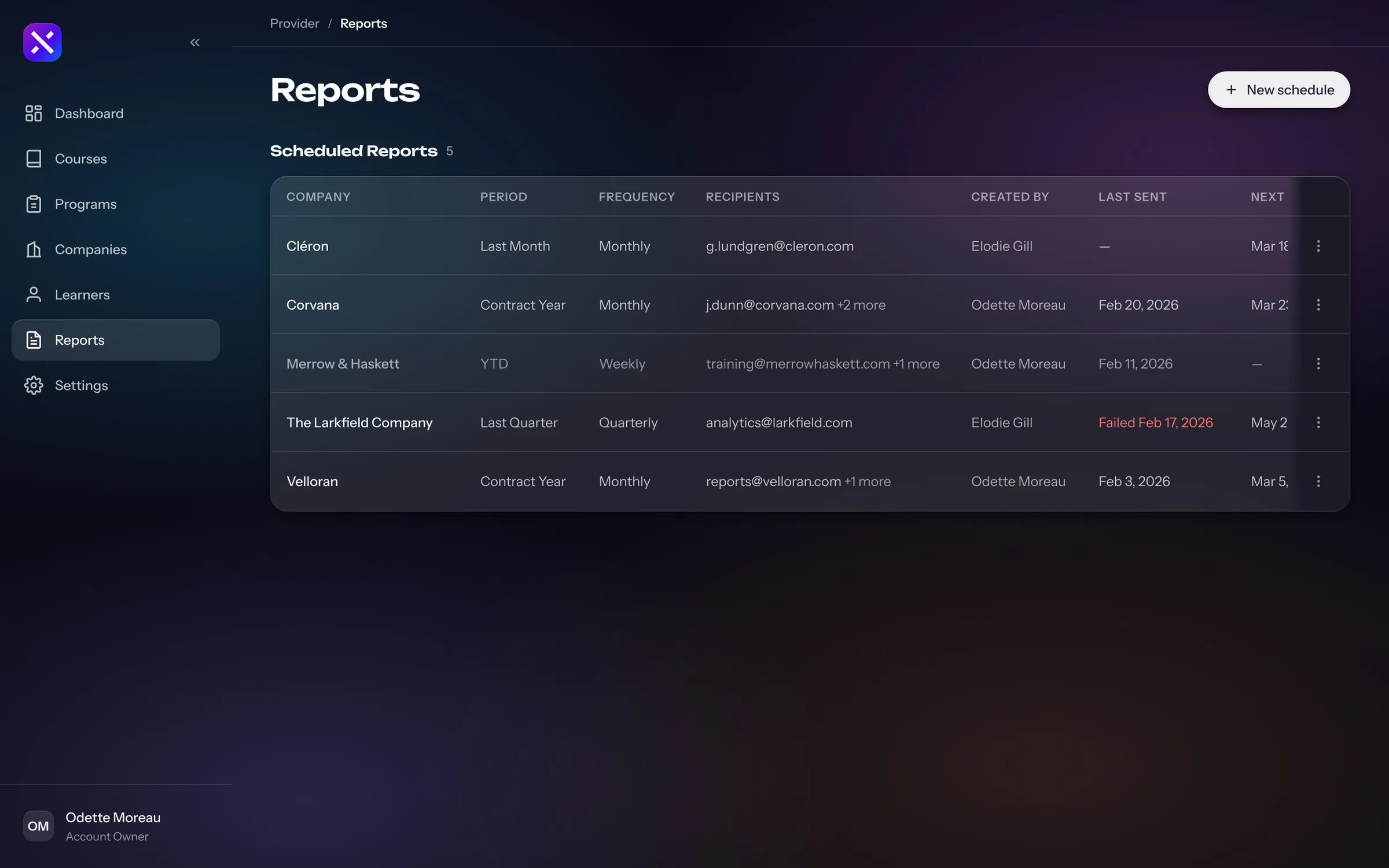
  • The Scheduled Reports table listing each company's report with its period, frequency, recipients, creator, last sent and next send, one of them failed

    Scheduled reports

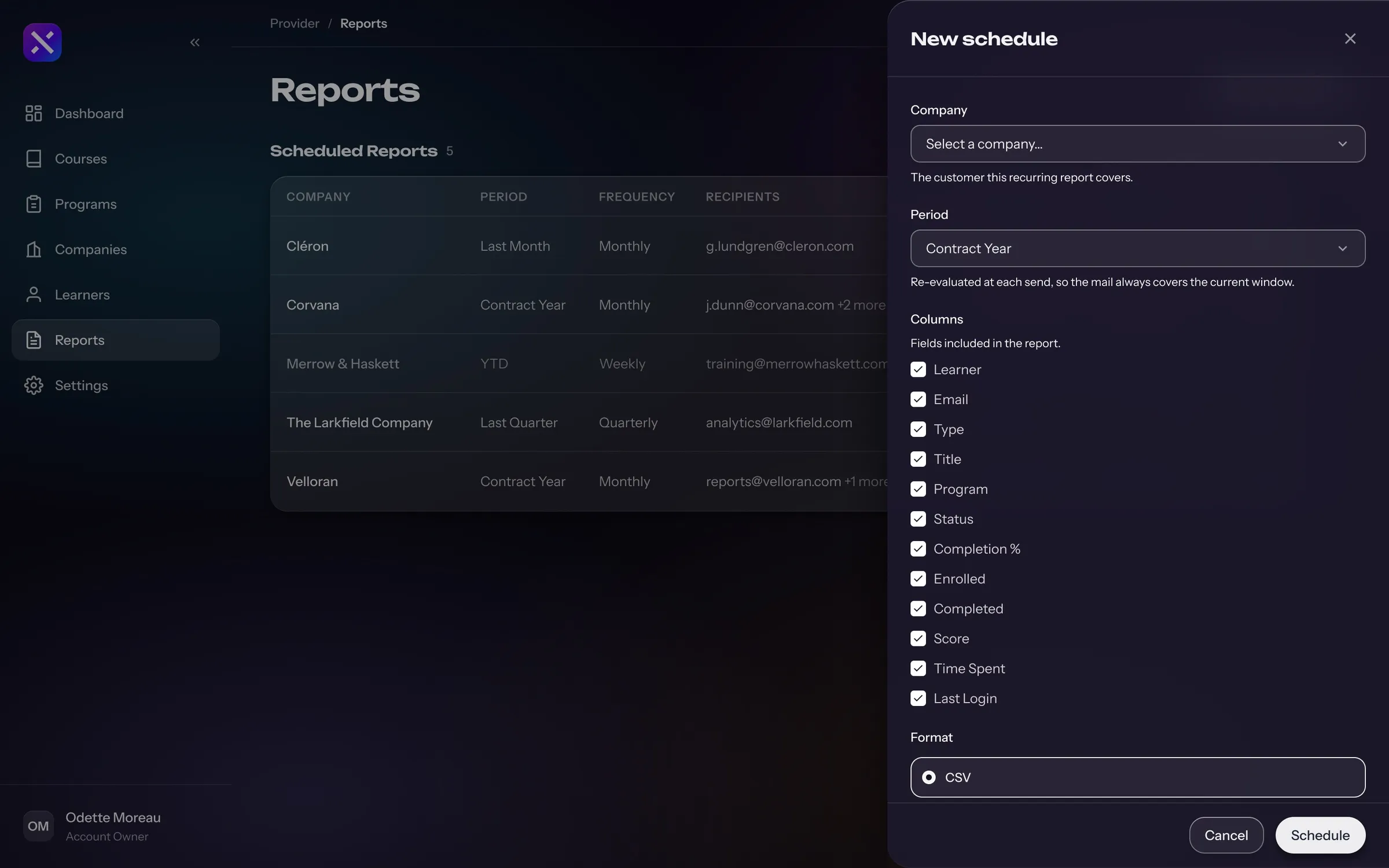
  • The New schedule panel: choose a company, a period and the columns to include, add recipients, then send a test or schedule it

    New schedule

Launching a course

A course arrives as a SCORM package, and problems in it surface on the draft, so they are fixed before any learner meets them. Publishing asks once, and learners are then added from the course itself.
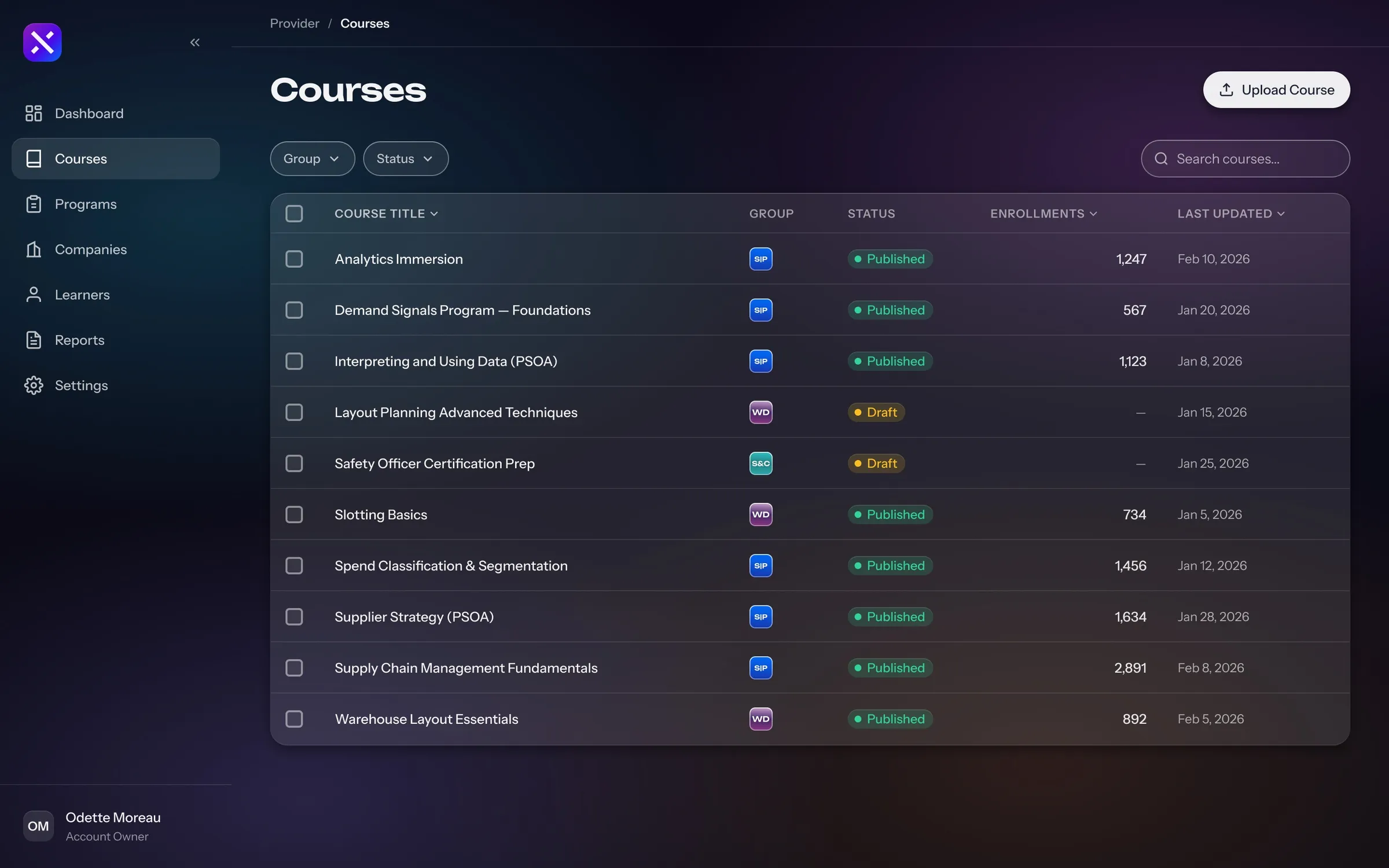
From an uploaded package to a published course with its learners
  • The Courses list with each course's group, status, enrolments and last update, filtered by group and status, and an Upload Course button

    Courses

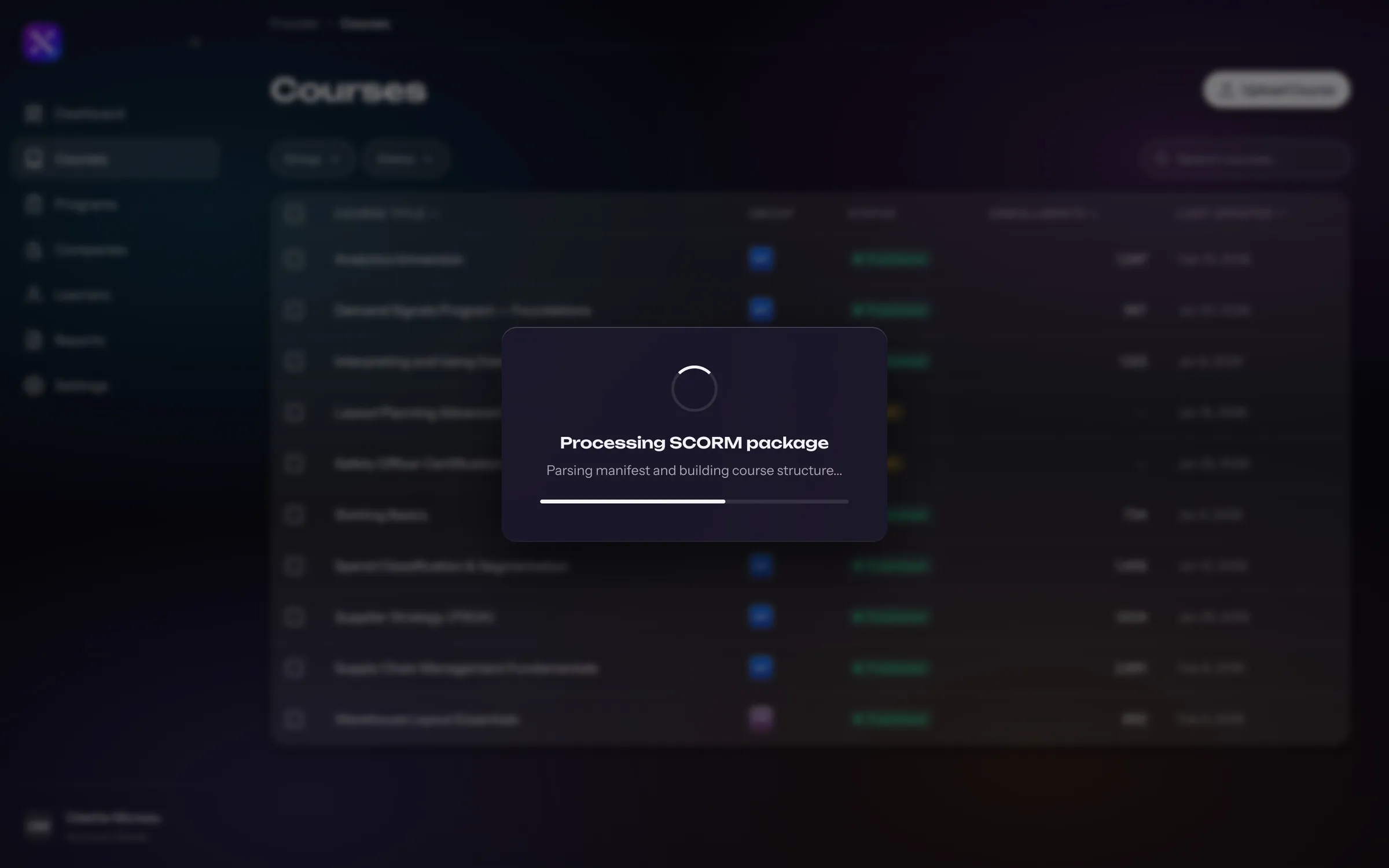
  • A Processing SCORM package dialog over the dimmed courses list, with a progress bar

    Uploading

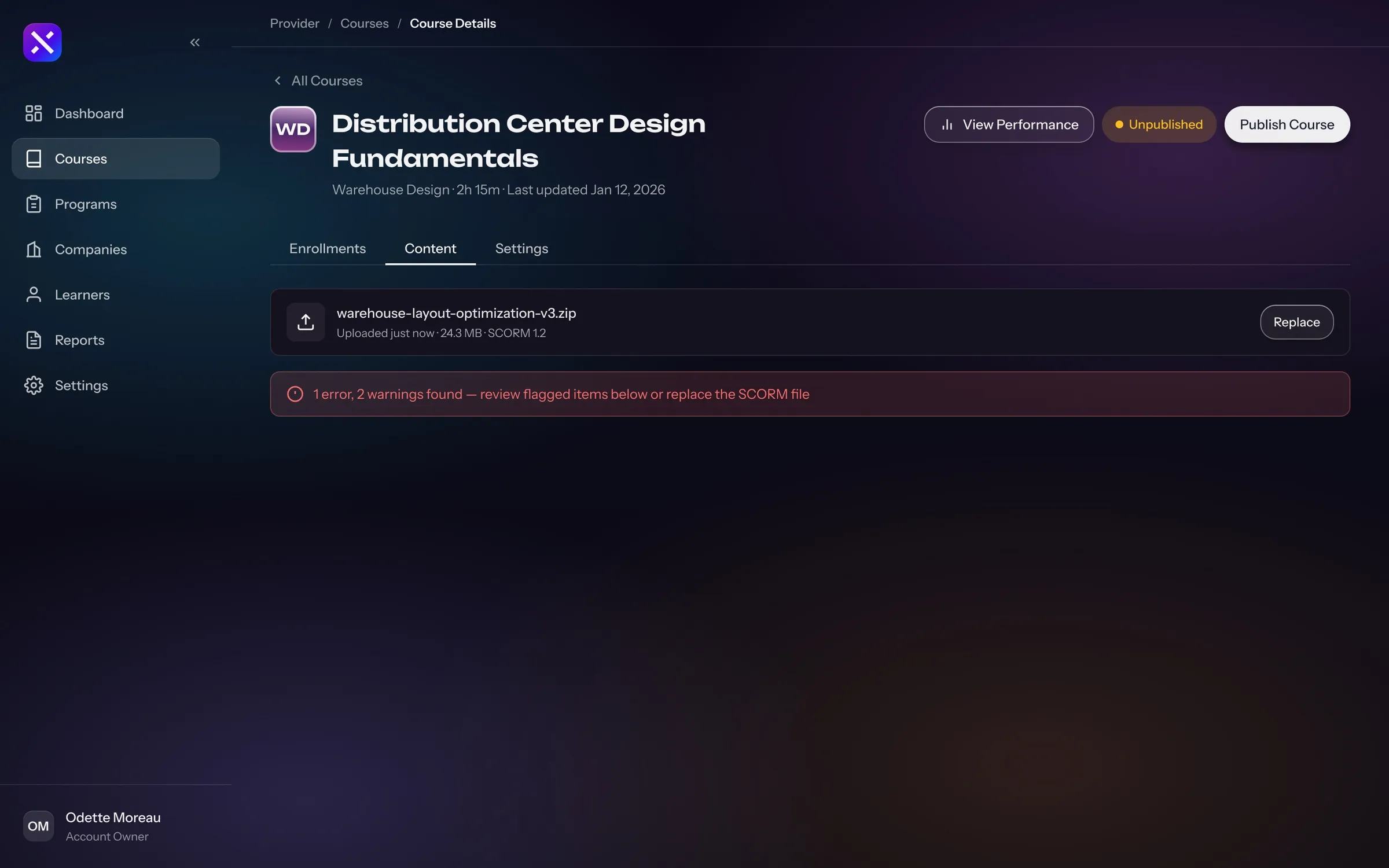
  • An unpublished course's Content tab with the uploaded package and a warning that flagged items need a look before publishing

    Content errors

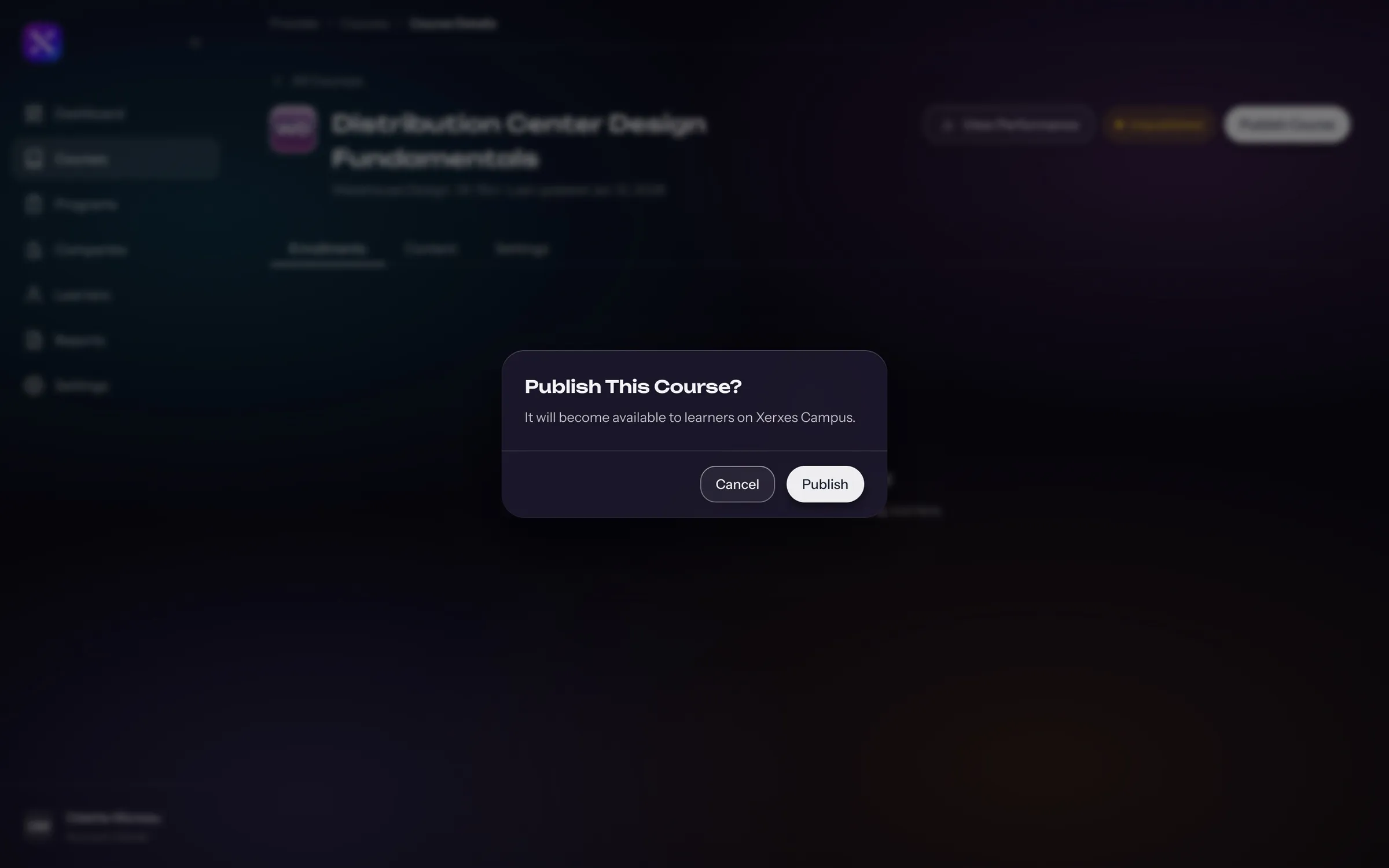
  • A Publish This Course dialog over the course page, saying it will become available to learners, with Cancel and Publish

    Publish

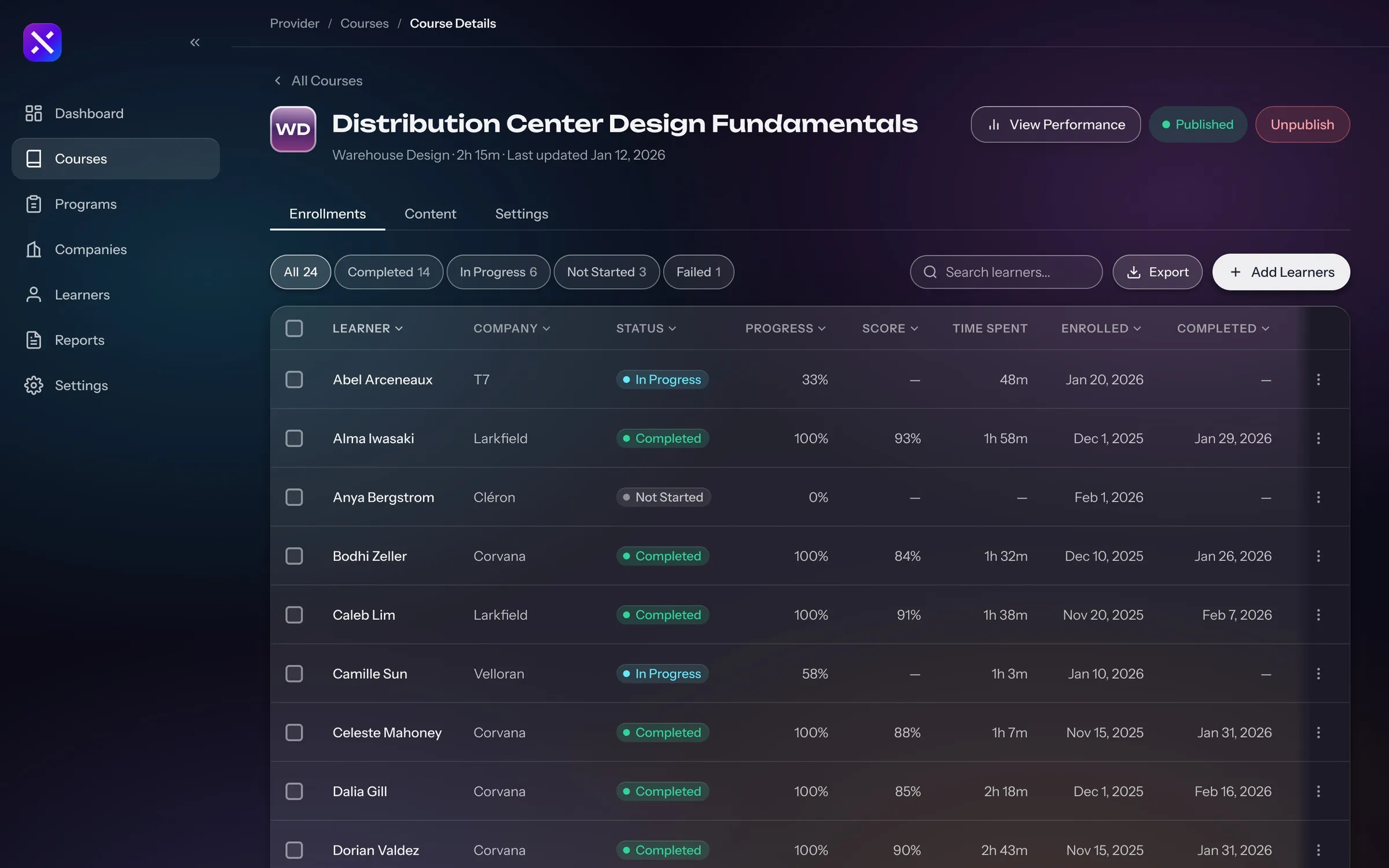
  • A published course's Enrollments tab with each learner's company, status, progress, score, time spent and dates, filtered by status

    Enrolments

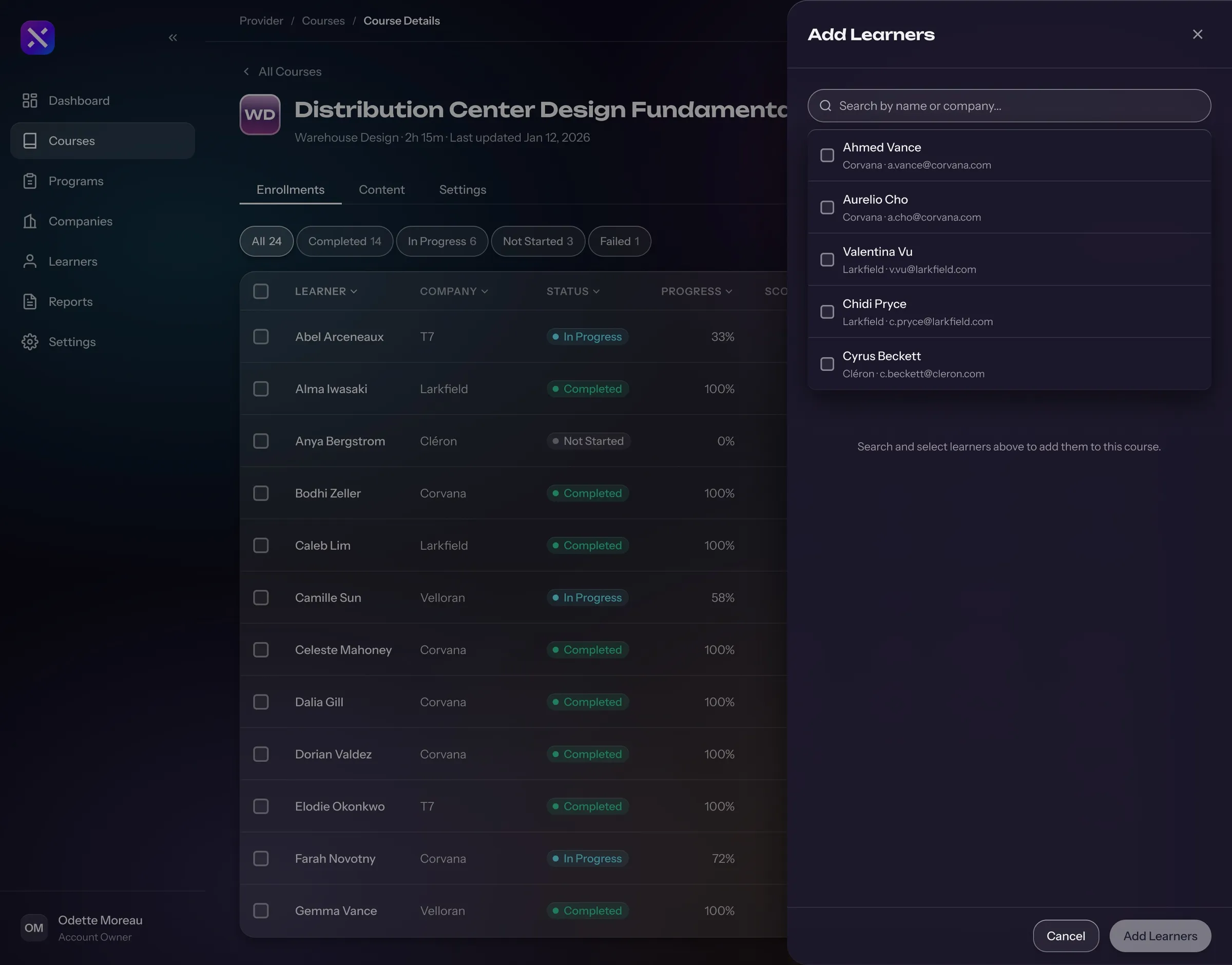
  • The Add Learners panel over a published course, searching by name or company and ticking people to enrol

    Add learners

Onboarding a customer

Courses are bundled into programs such as certifications and onboarding tracks. A whole company or single people go onto a program from one panel, and the company's own page then shows its learners, the credits it has used and every enrolment.
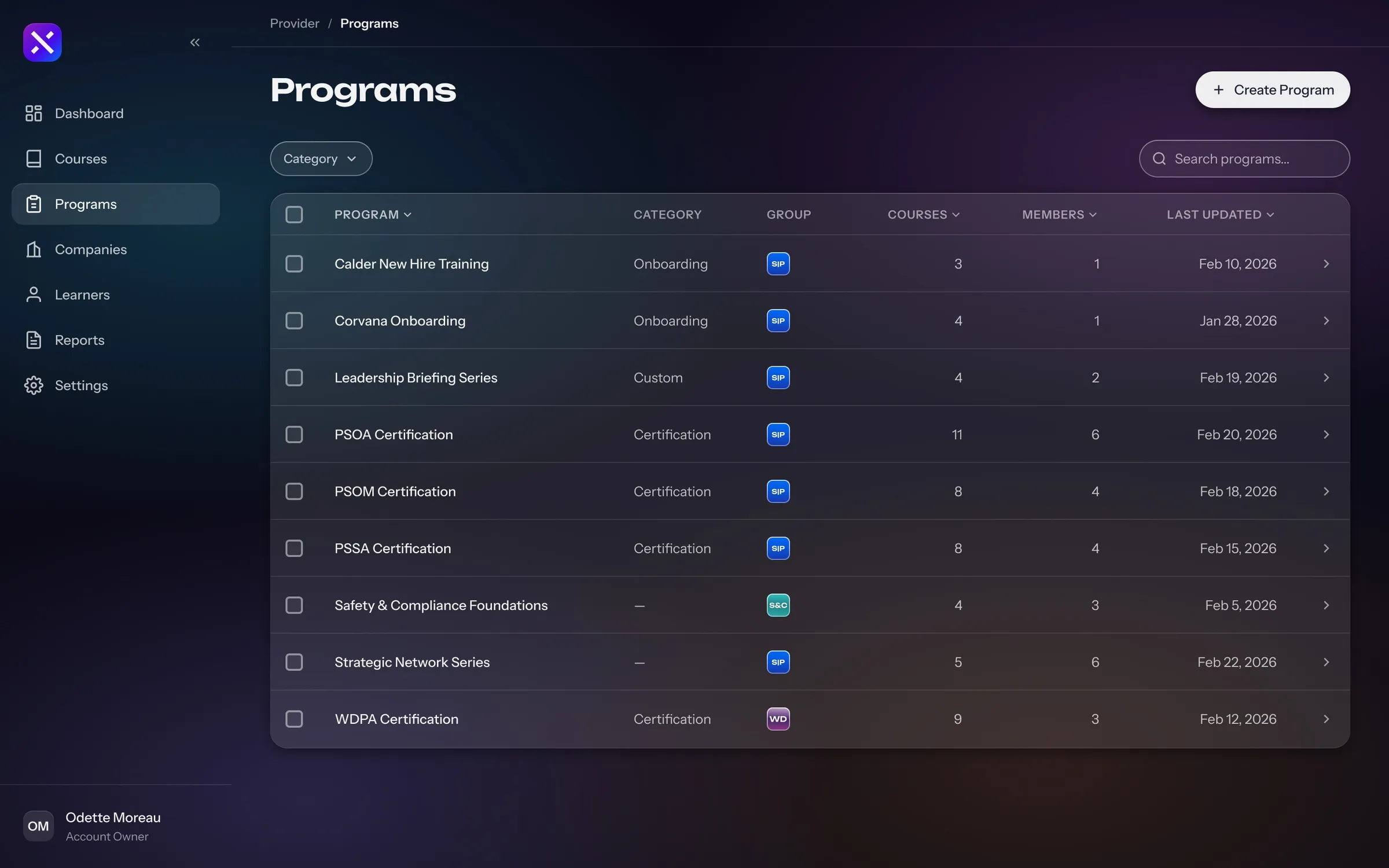
A company added to a certification program
  • The Programs list with each program's category, group, number of courses and members, and when it was last updated

    Programs

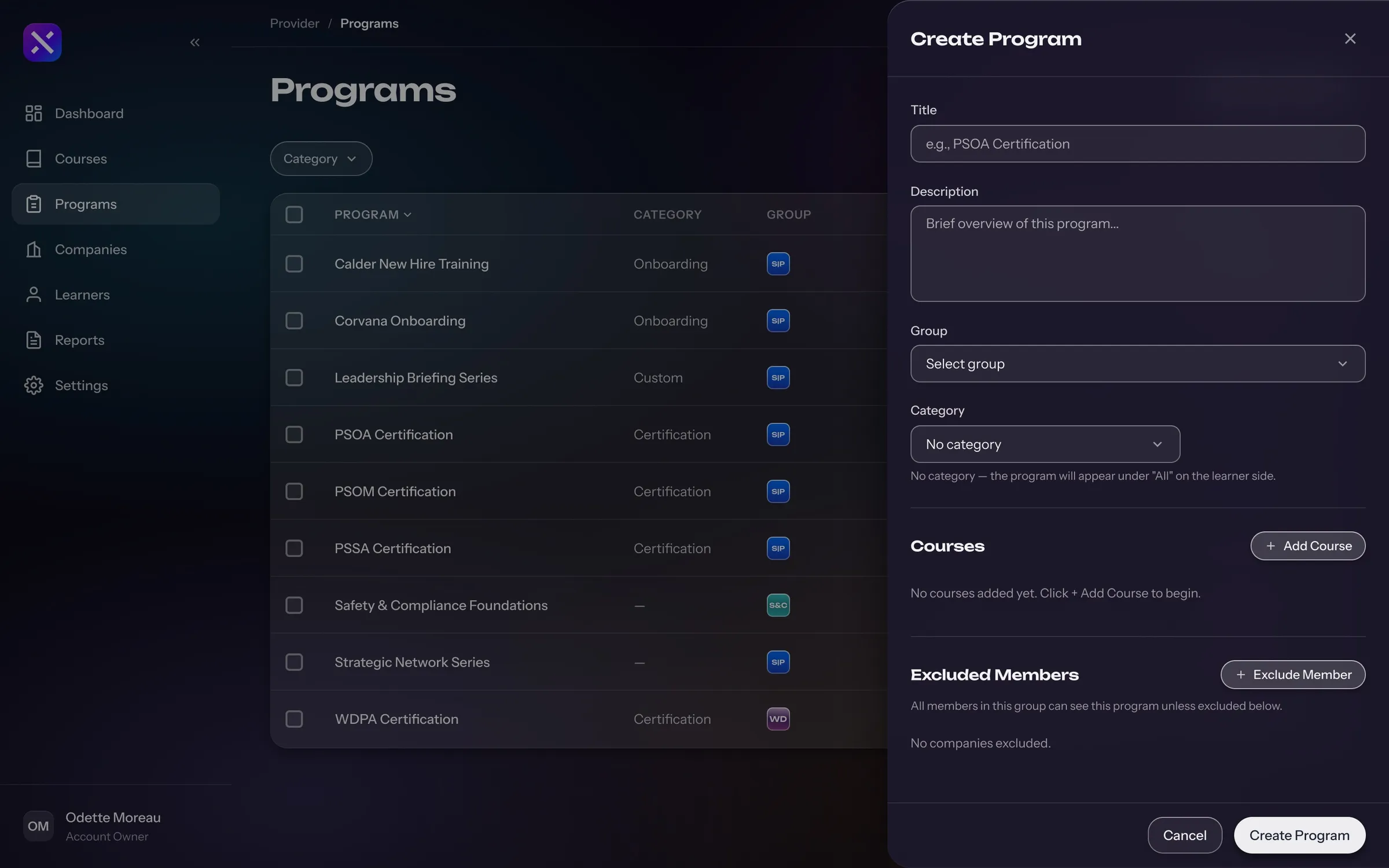
  • The Create Program panel with a title, description, group and category, then the courses to include and any members to exclude

    Create a program

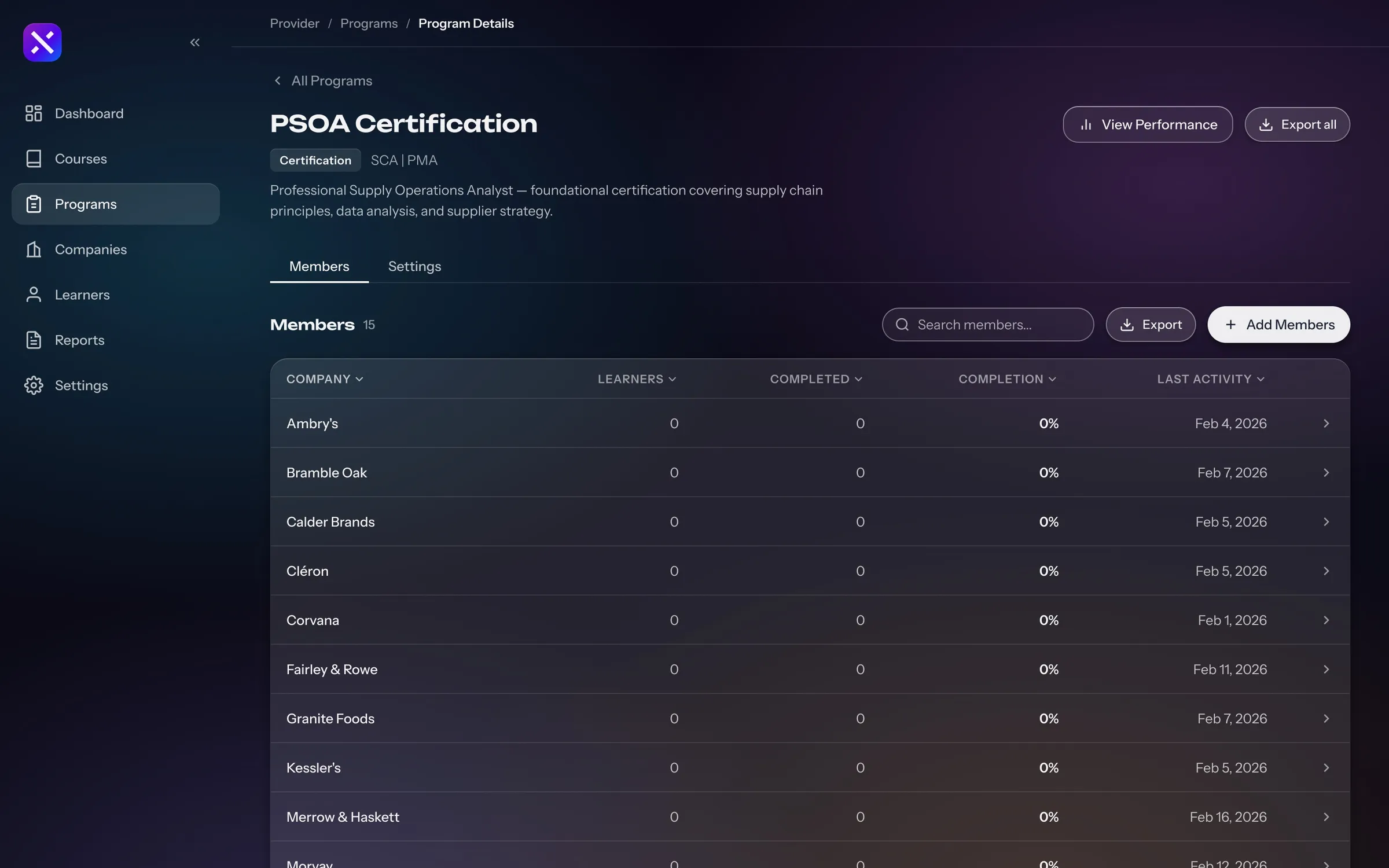
  • A certification program's Members tab, listing each company on it with learners, completions, completion and last activity

    Certification program

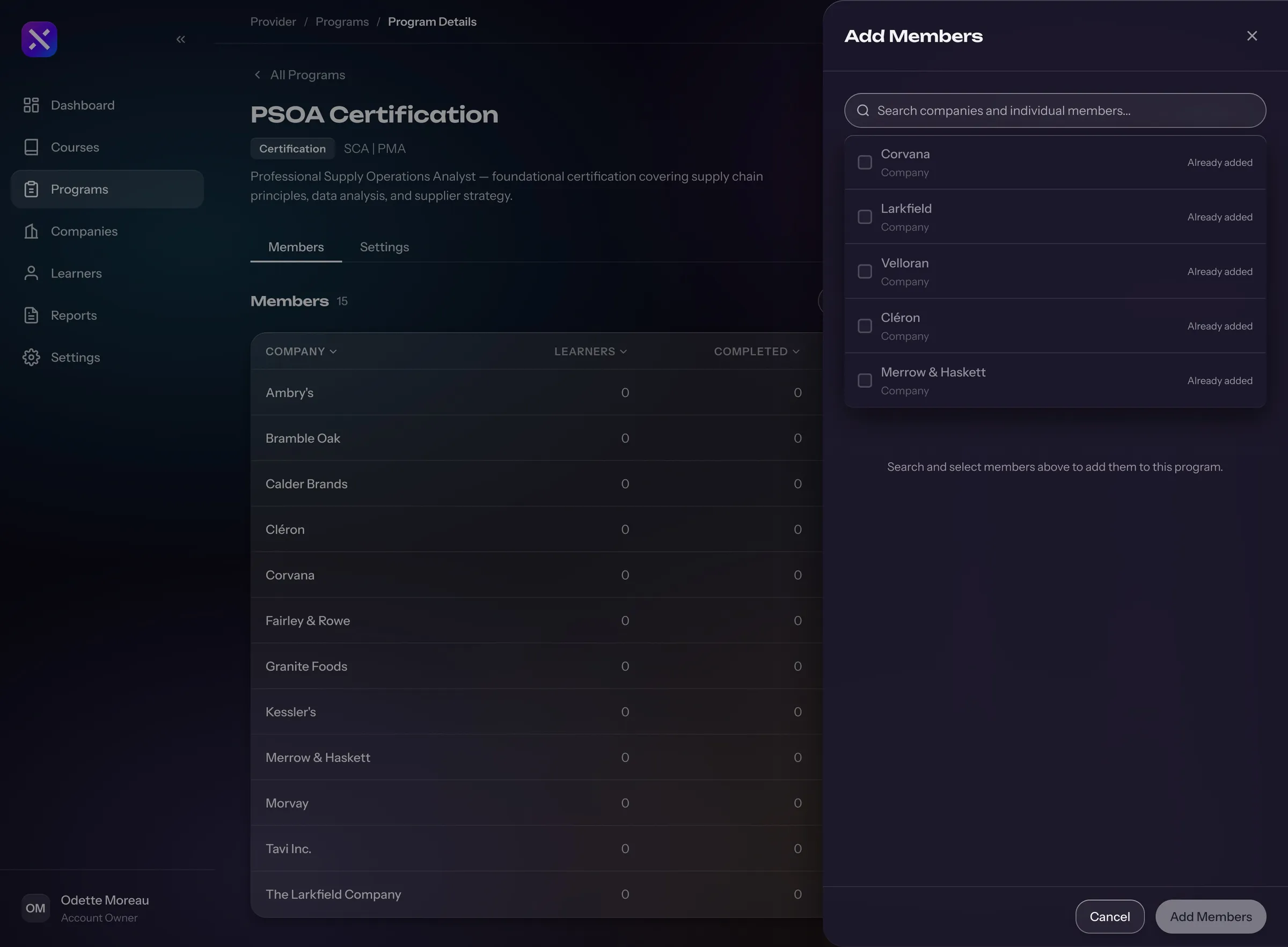
  • The Add Members panel over a certification program, searching companies and individual members to add

    Add members

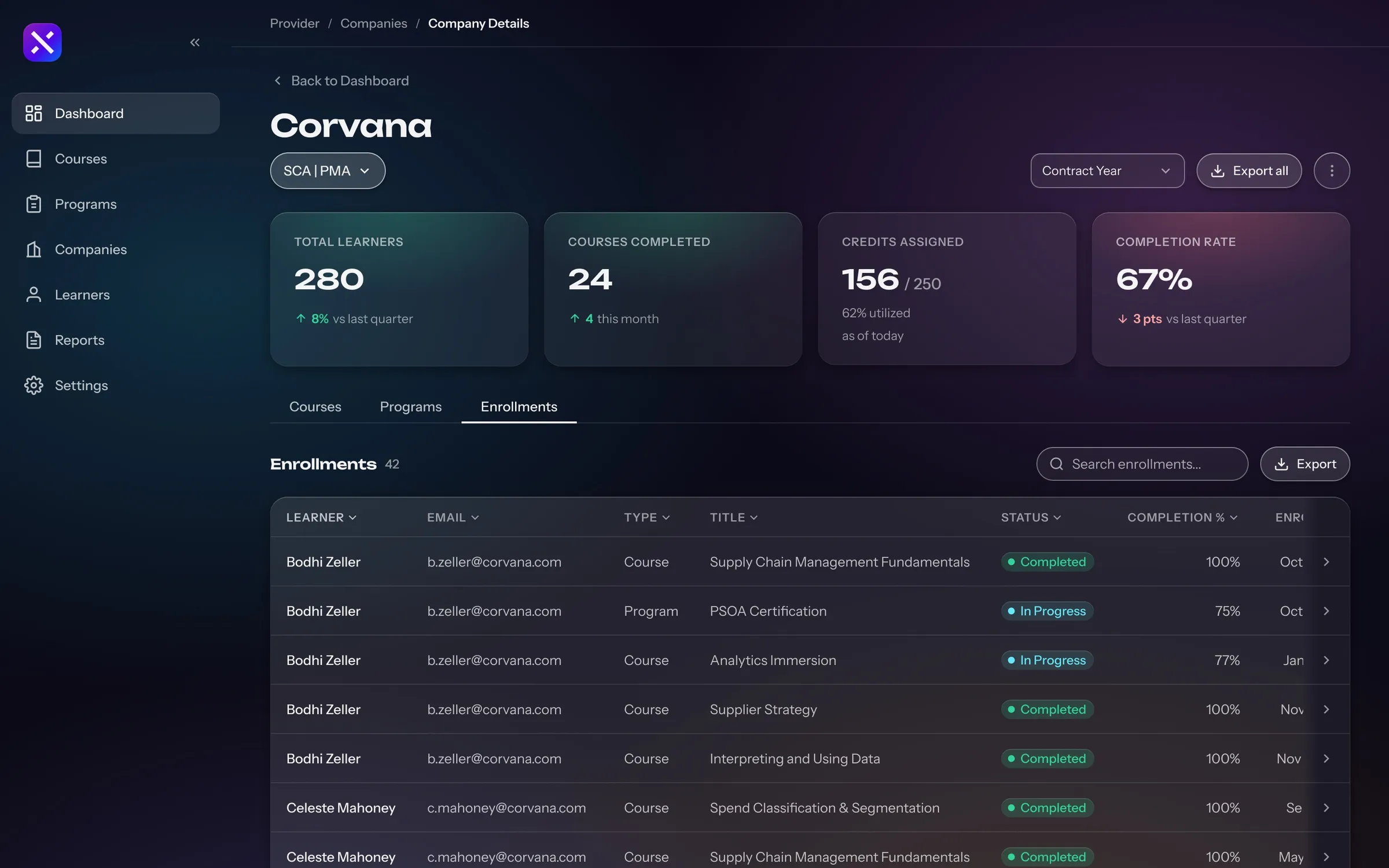
  • A company page for Corvana with total learners, courses completed, credits assigned and completion rate, and an Enrollments table across courses and programs

    Company

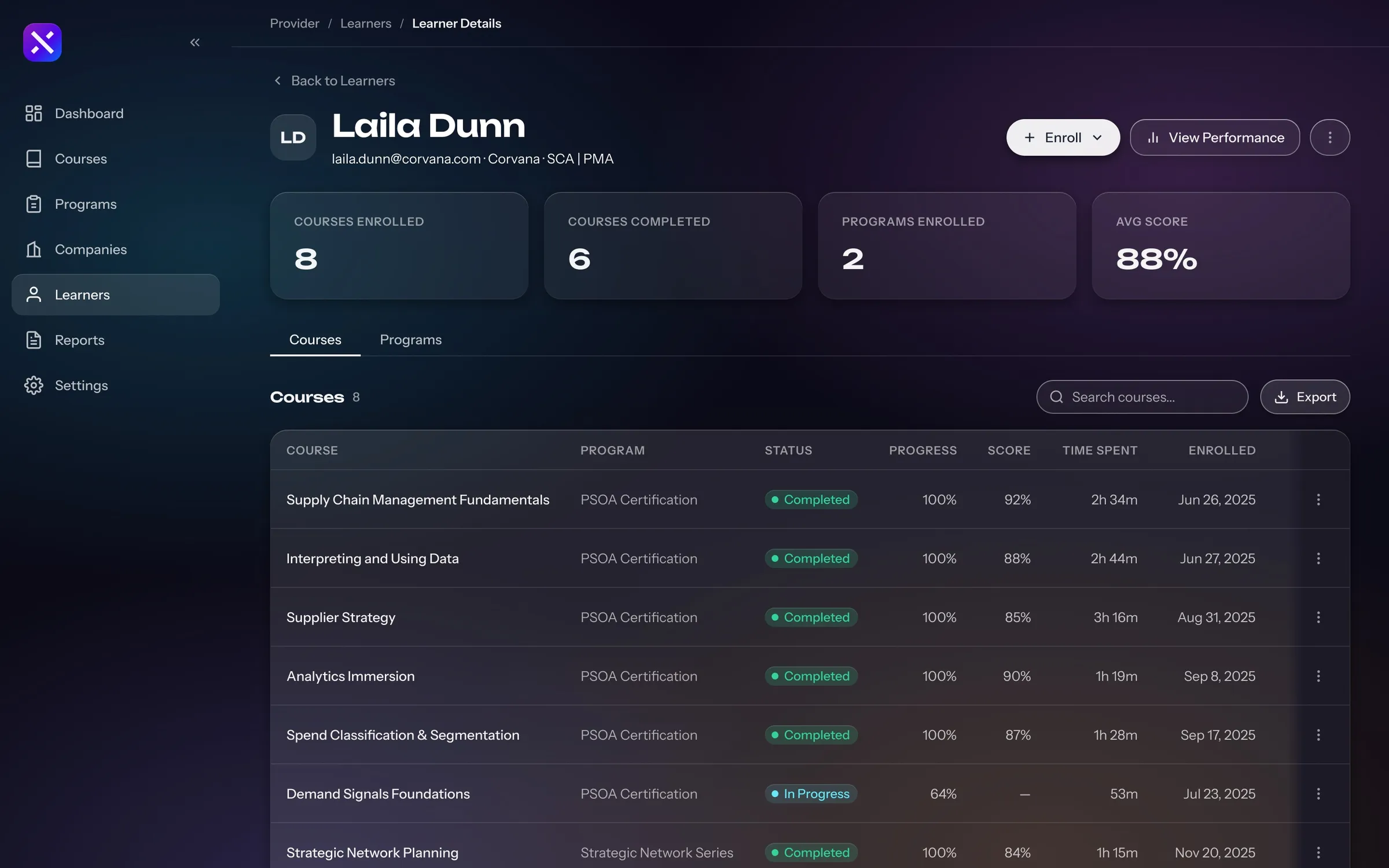
  • A learner's page for Laila Dunn with courses enrolled, completed, programs and average score, and a table of courses with progress, score and time spent

    Learner

Running the platform

Xerxes Global has a view of its own across every provider, which opens on what needs attention before the totals. From an alert a SuperAdmin reaches the provider and its admins, and support can see exactly what a provider sees.
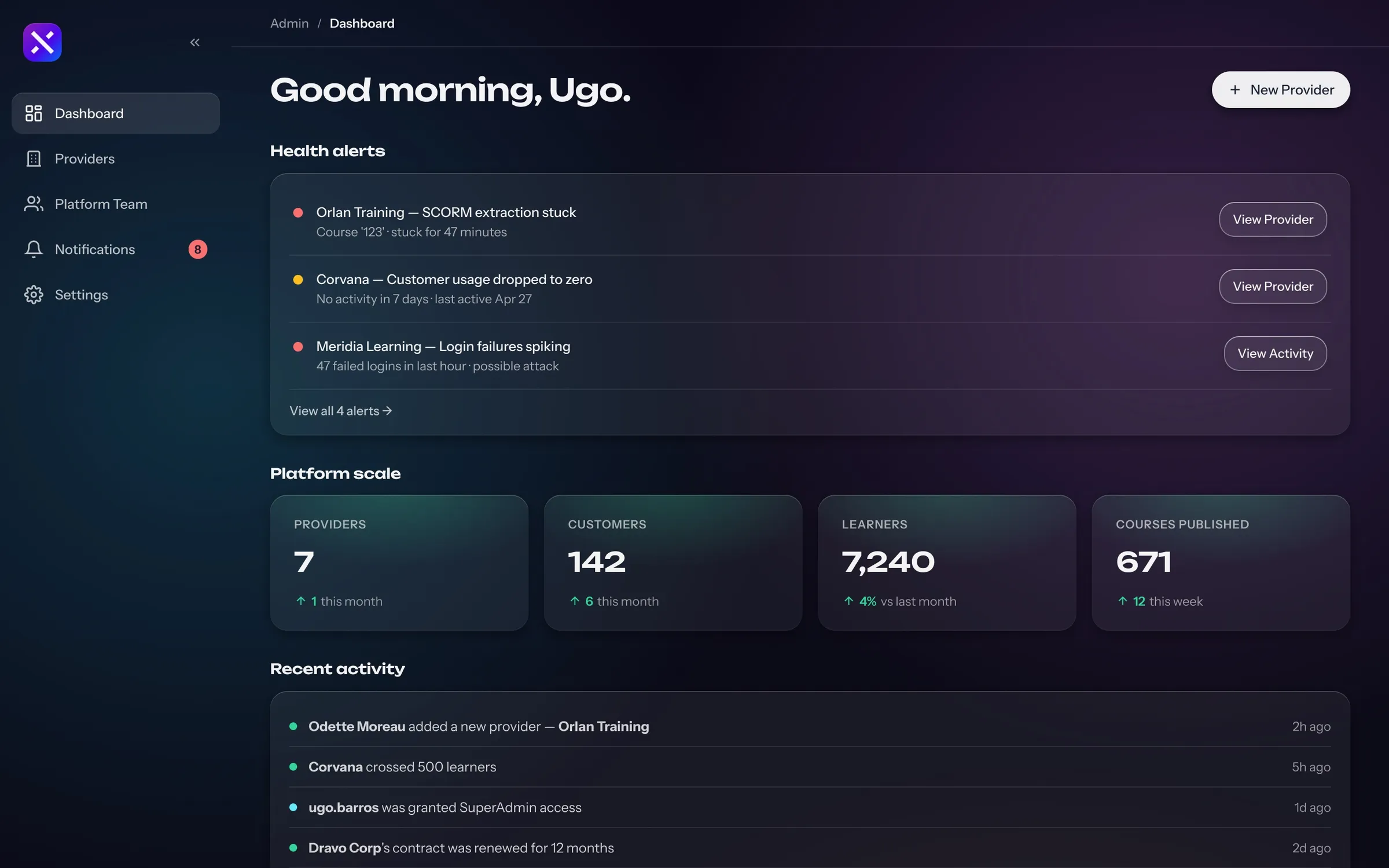
From an alert on the dashboard to the provider and its admins
  • The SuperAdmin dashboard, Good morning, Ugo, with health alerts for stuck uploads, a customer gone quiet and failed logins, then platform totals for providers, customers, learners and courses published

    Dashboard

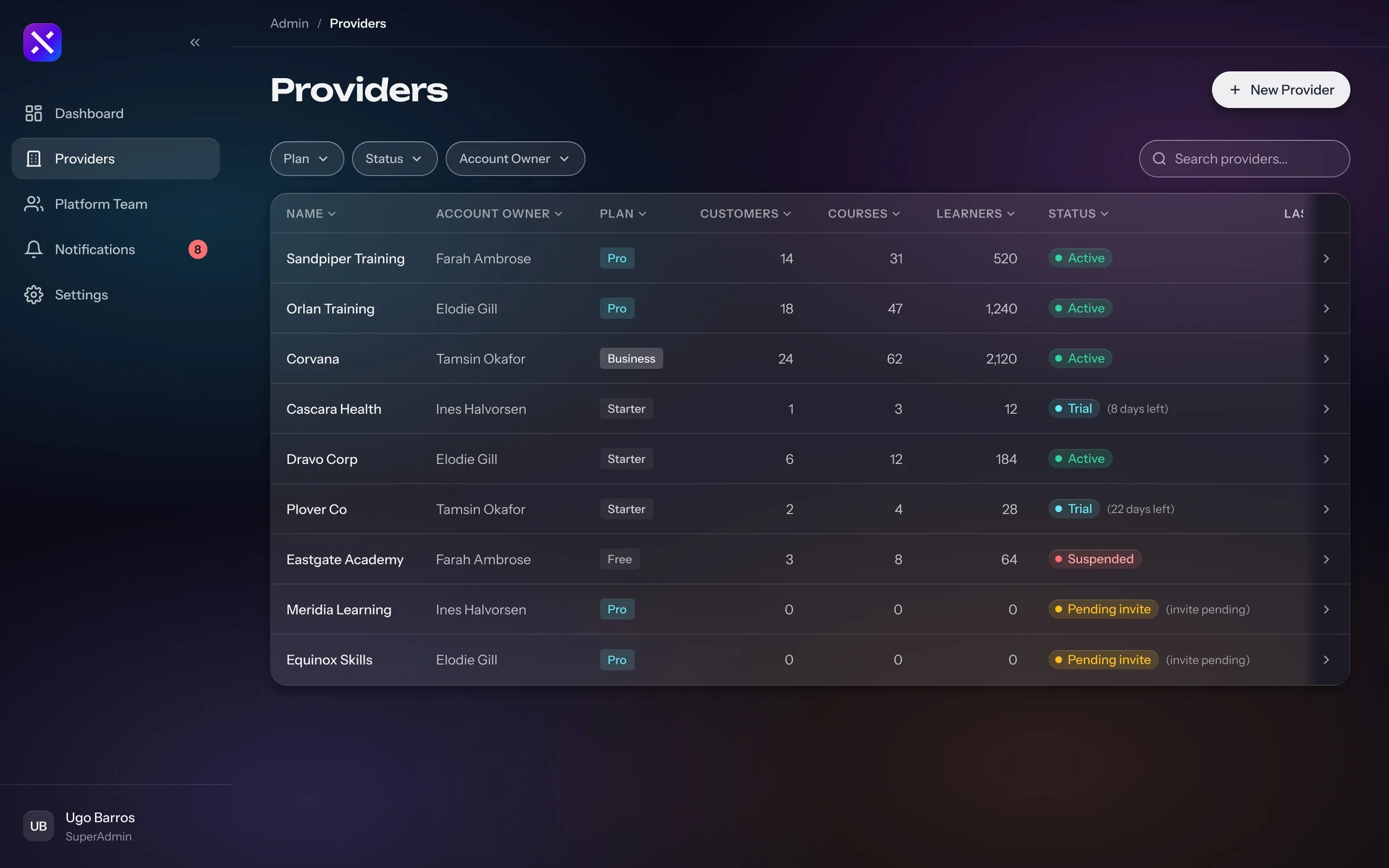
  • The Providers list with each provider's account owner, plan, customers, learners, courses, status and last activity, including trials, a suspended provider and an owner yet to accept an invite

    Providers

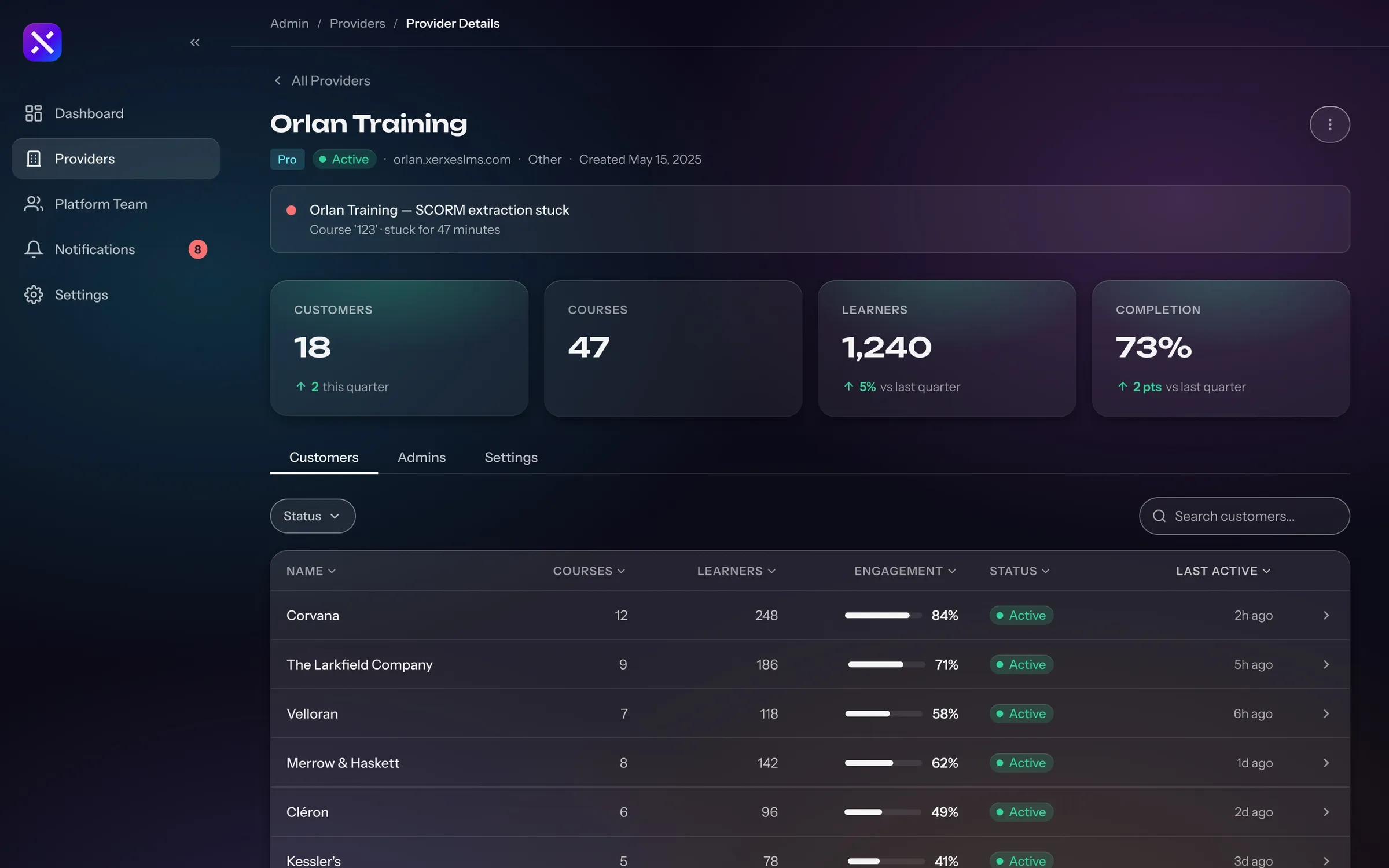
  • A provider's page for Orlan Training with an open alert, its customers, courses, learners and completion, and a table of its customers by engagement

    Provider

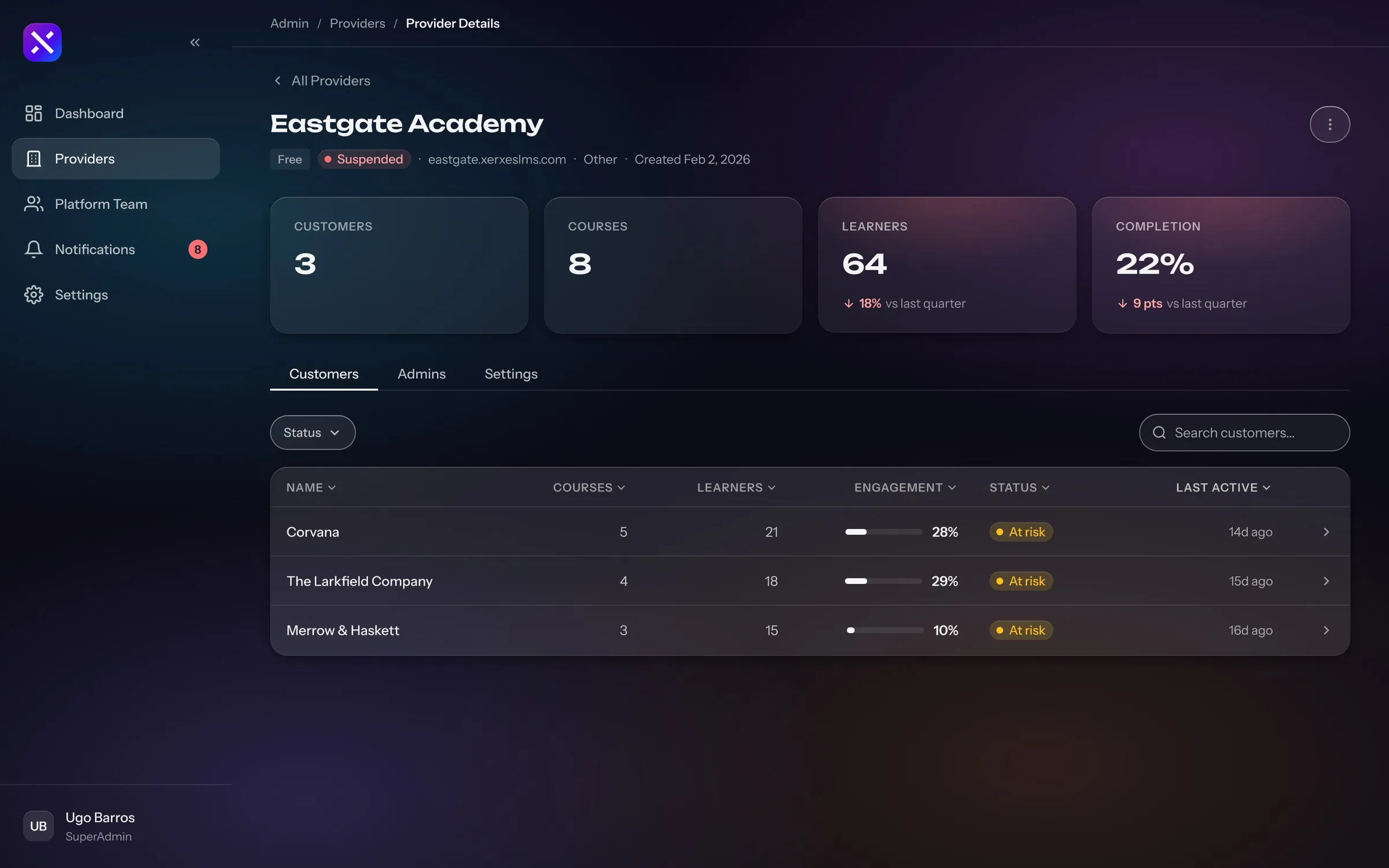
  • A suspended provider, Eastgate Academy, marked Suspended beside its plan, with its few customers at risk

    Suspended

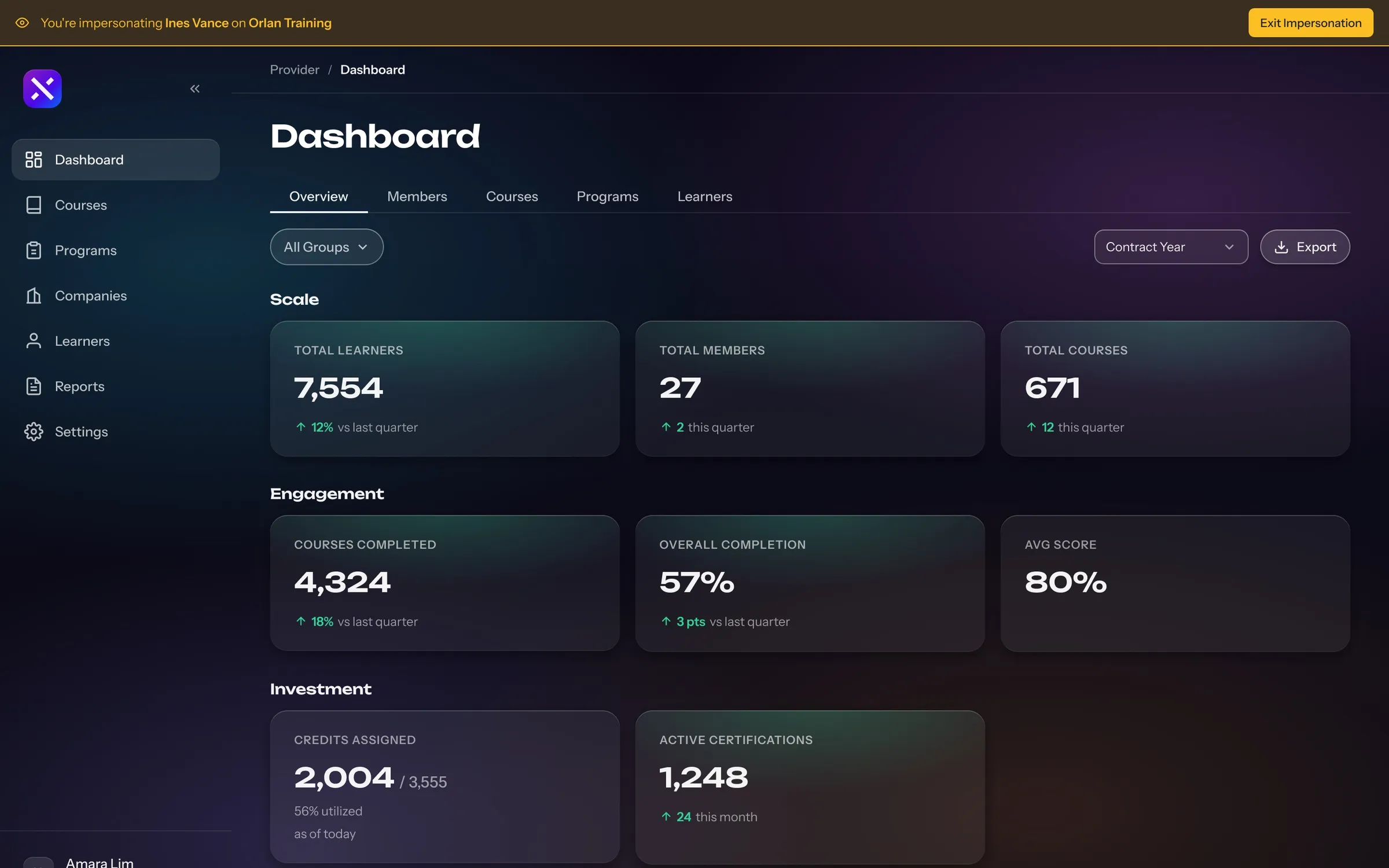
  • A provider's dashboard seen by a SuperAdmin, with a yellow bar across the top, You're impersonating Ines Vance on Orlan Training, and Exit Impersonation

    Impersonating

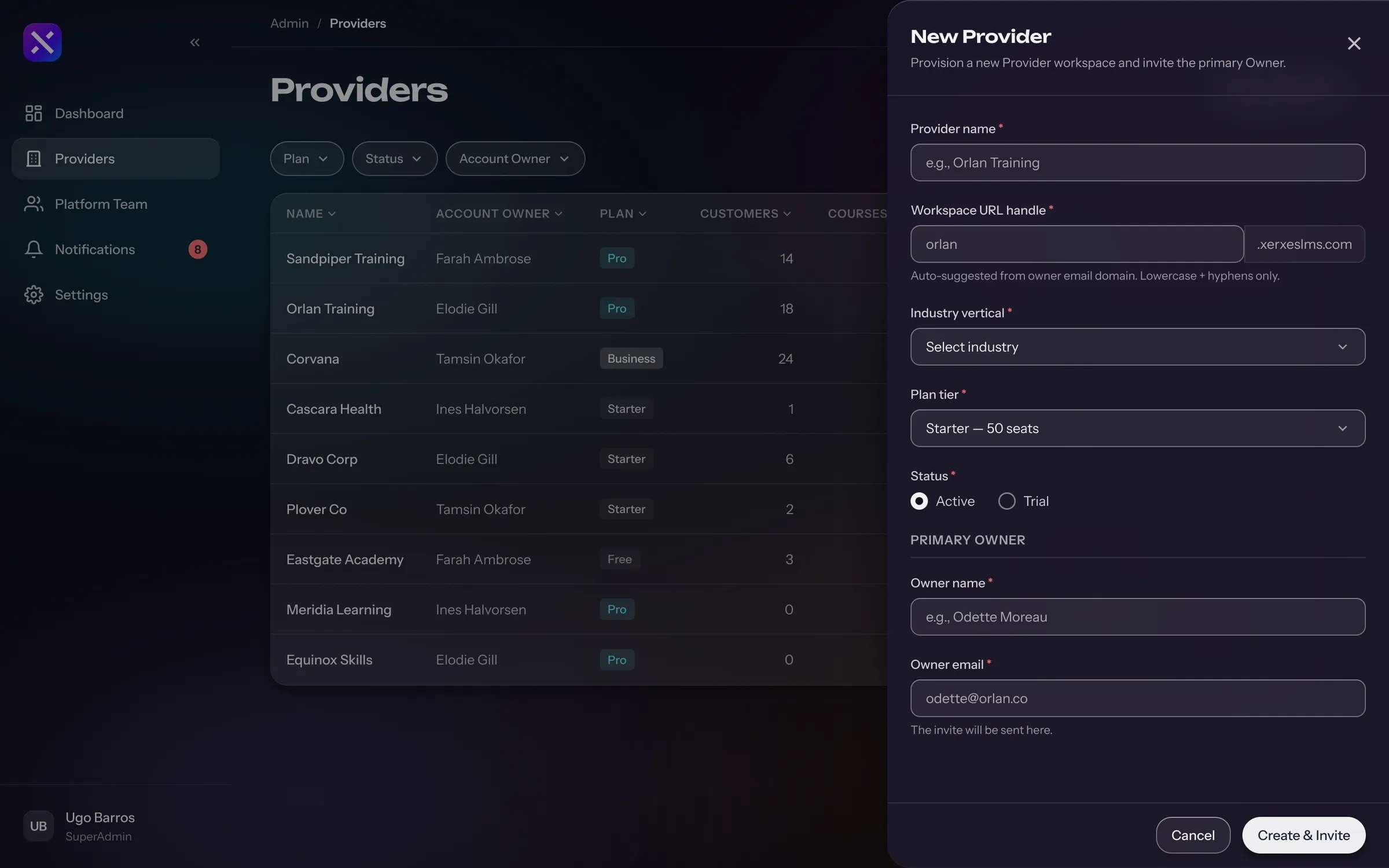
  • The New Provider panel over the providers list: provider name, workspace URL, industry, plan tier, status, and the primary owner who gets the invite

    New provider

7 months
to go live
$60K+
saved a year
Next projectSquadStackA better working day for every caller